

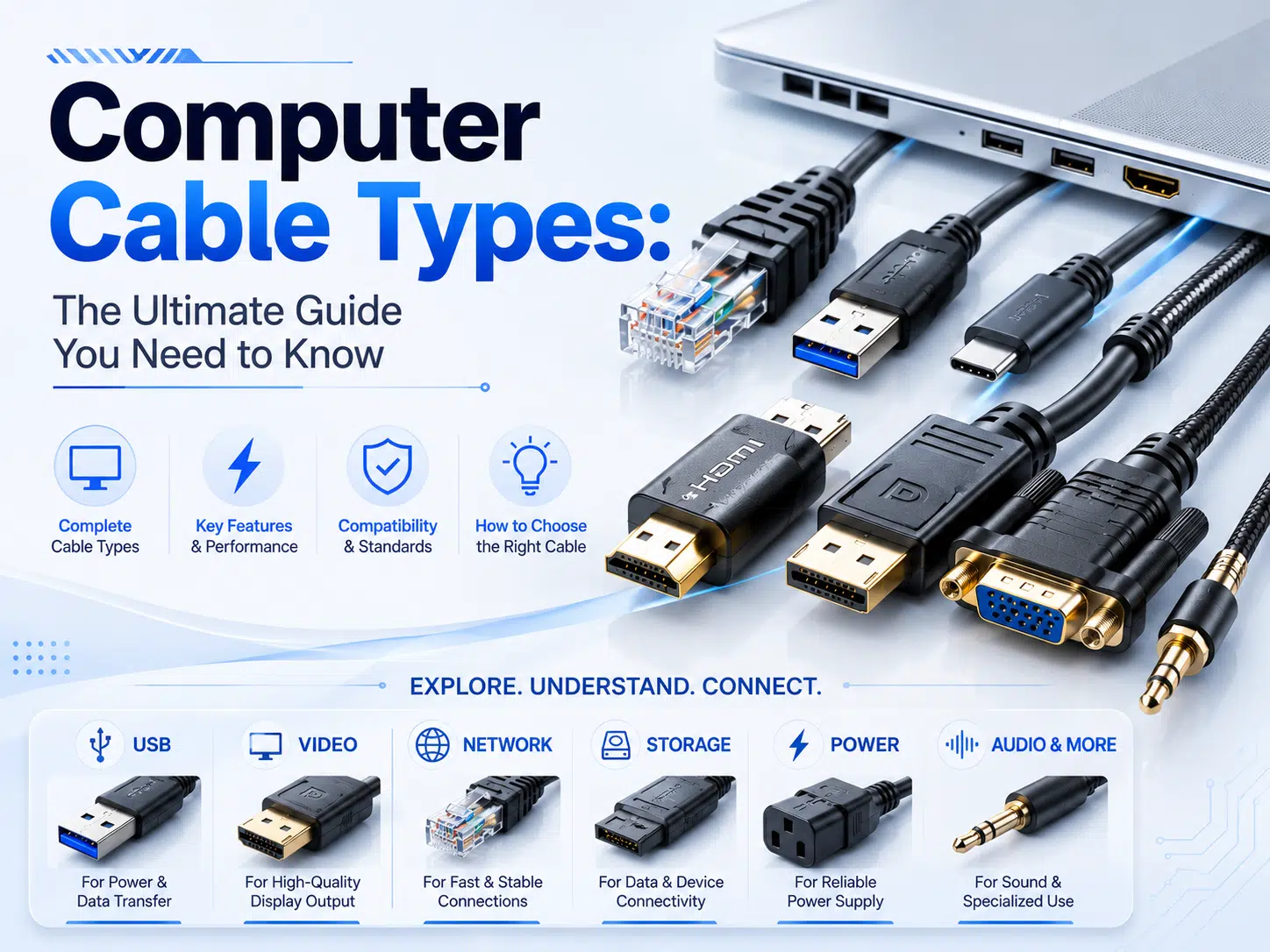
Computer cable types are best selected by function first: video, data, networking, audio, power, or a combination of these. Connector shape alone does not guarantee speed, charging level, video output, or protocol support. Confirm the ports and capabilities in the computer and peripheral documentation, then match the cable, adapter, and required length to the actual application.
This guide covers current and legacy computer connections. For a custom build, share the connector part numbers, pinout, electrical role, cable length, routing environment, and acceptance requirements with a custom cable assembly team before production.
| Cable type | Primary role | Selection boundary |
|---|---|---|
| VGA | Legacy analog video | Image quality depends on source, display, resolution, length, routing, and cable construction. |
| DVI | Legacy digital or mixed video families | DVI-D, DVI-I, single-link, and dual-link are not interchangeable by name alone. |
| HDMI / DisplayPort | Digital display and, where supported, audio | Verify the source port, display input, cable category, and required mode. |
| USB | Data, charging, and optional alternate modes | USB-C is a connector; its capabilities depend on the complete port-device-cable path. |
| Ethernet | Wired networking | Match the cable category, channel, connector, PoE need, and installed environment. |
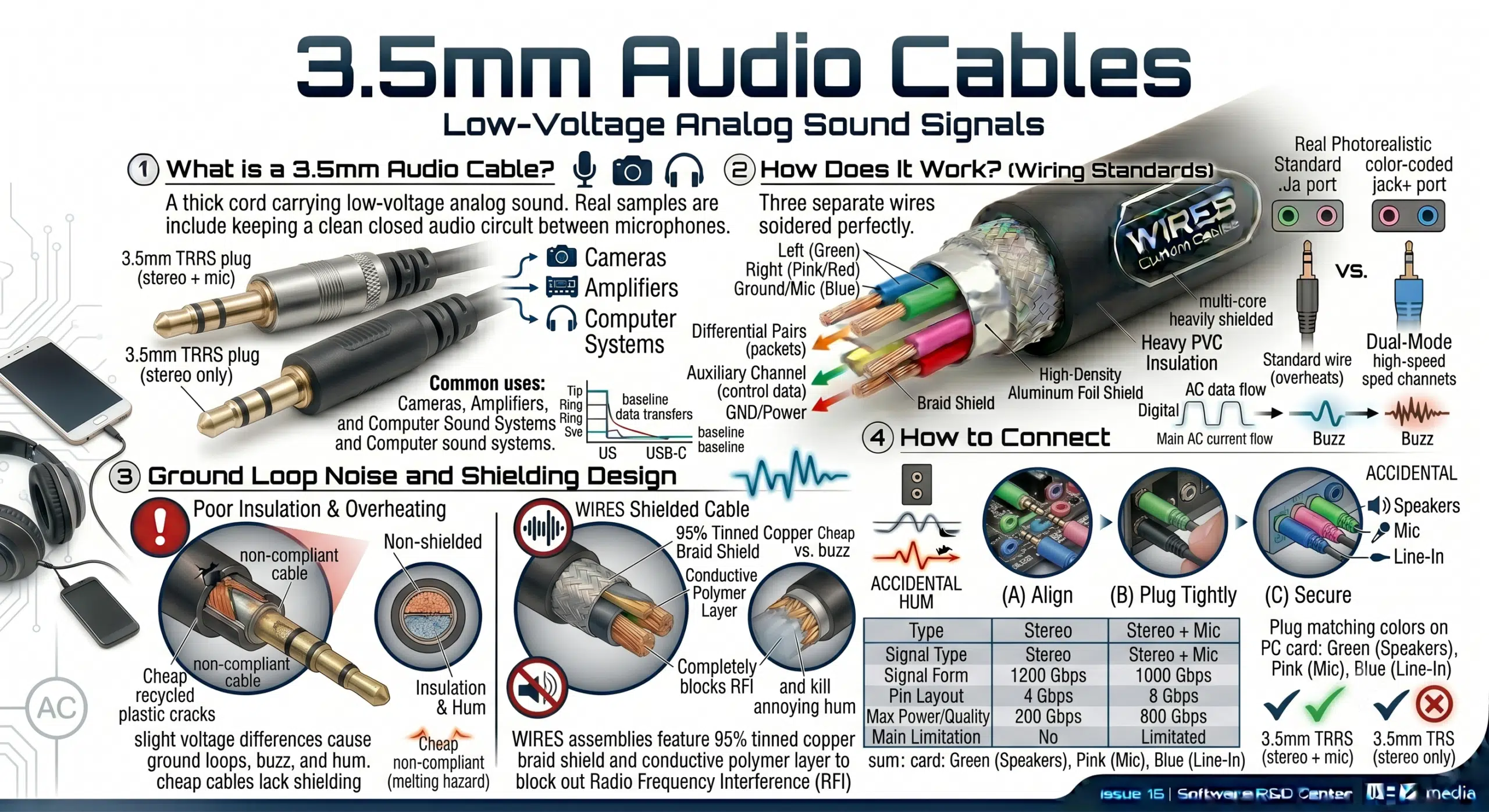
| 3.5 mm audio | Analog audio or device-specific signaling | TRS/TRRS contact count does not prove a universal pinout or balanced connection. |
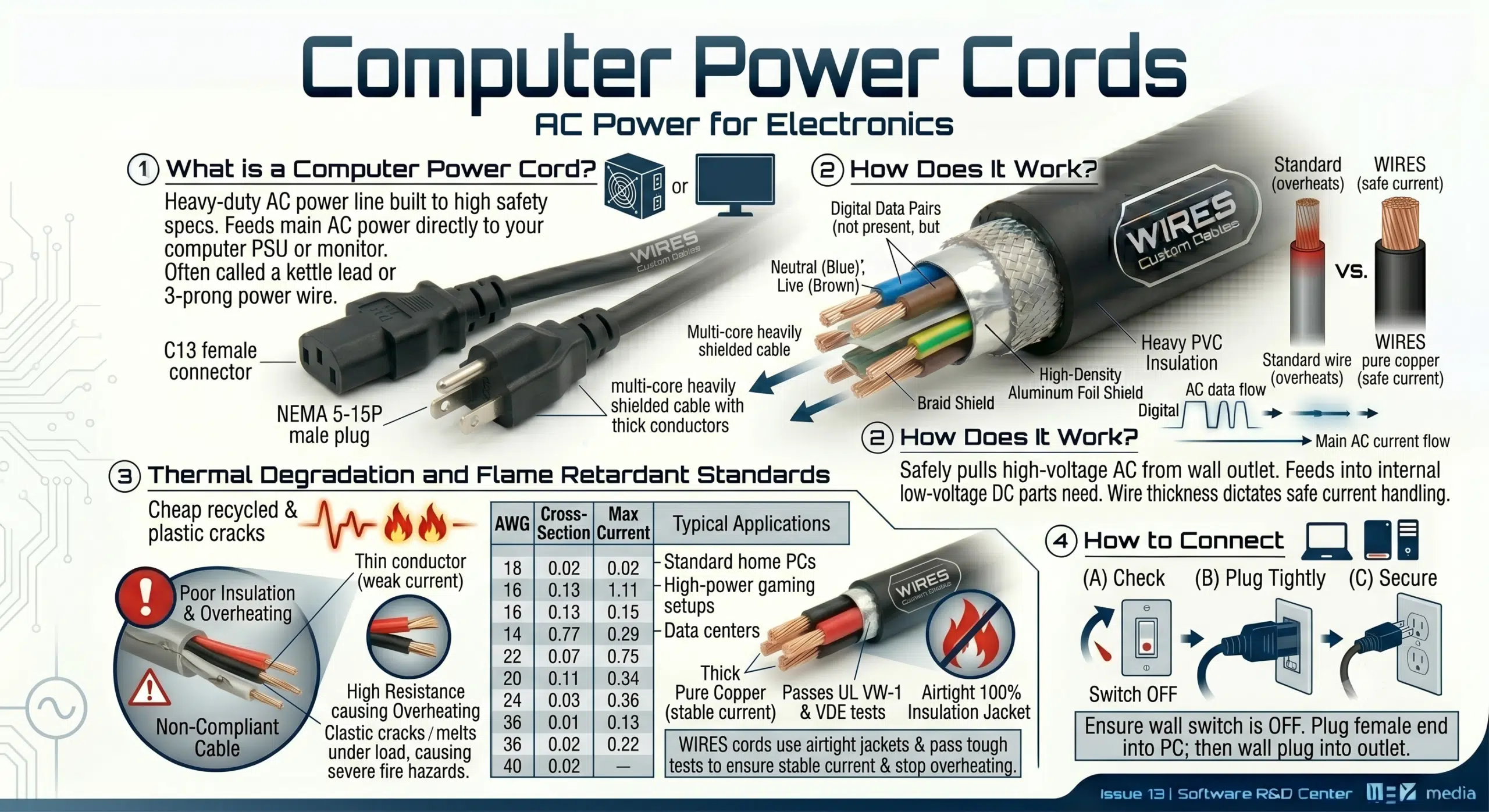
| AC power cord | Equipment power | Use the inlet, plug, voltage, current, region, and applicable safety requirements. |
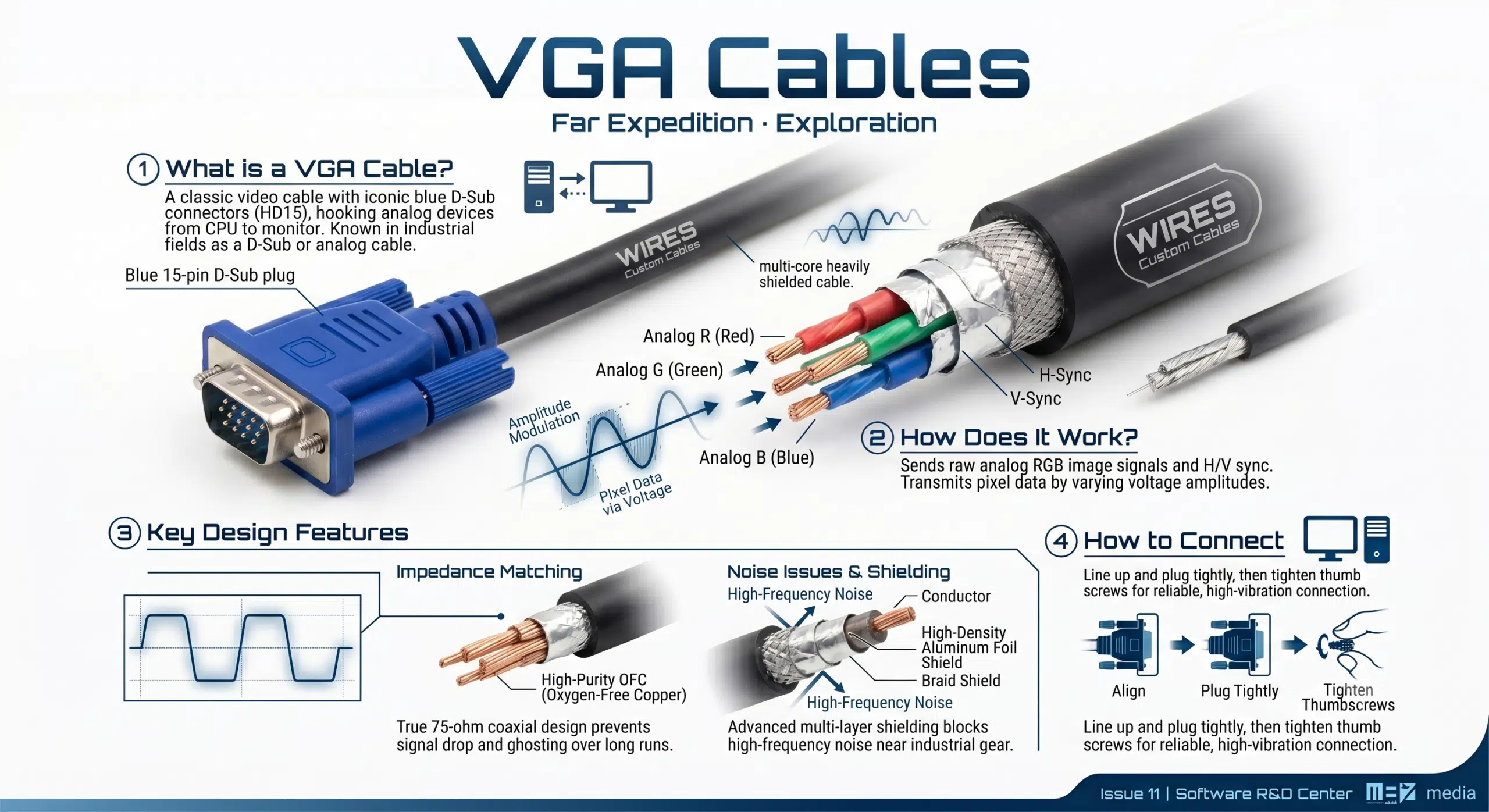
VGA usually uses a 15-pin D-sub connector and carries analog RGB video with synchronization signals. It remains common in older displays, test equipment, and industrial PCs. Because it is analog, the usable result is affected by the source, display, resolution, cable construction, length, and nearby electrical noise; avoid assuming one universal distance or image-quality limit.
Secure the thumbscrews, avoid bending the connector pins, and use the display menu to select the correct input. An active converter is normally required when moving between an analog VGA signal and a digital-only interface.
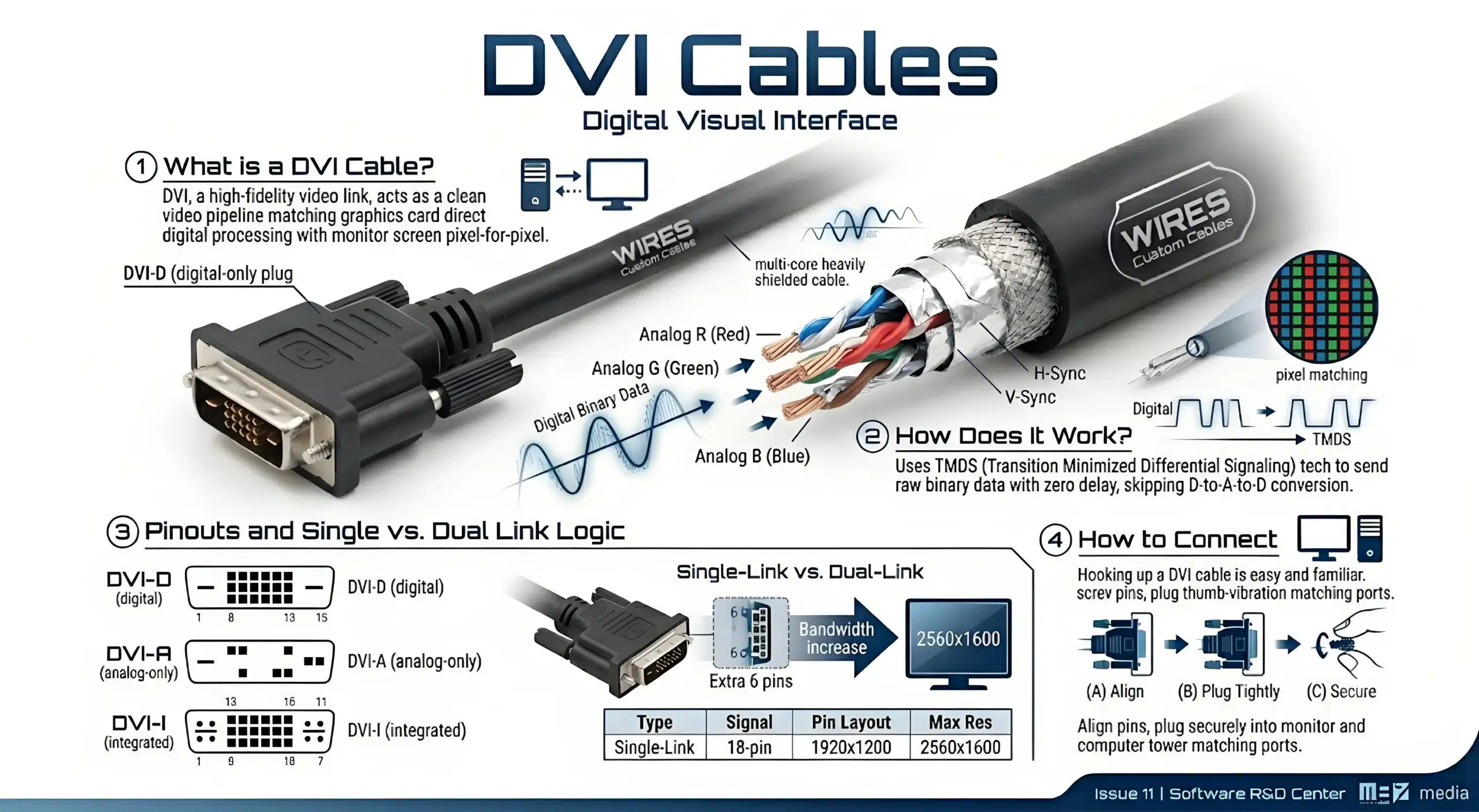
DVI is a digital-display interface family. DVI-D carries digital signaling, while DVI-I can include digital and analog contacts; the exact output capability depends on the graphics hardware. Single-link and dual-link labels describe signal-link arrangements, not a blanket guarantee of a particular resolution. Compare the connector face, source documentation, display documentation, and required mode before selecting a cable or adapter.
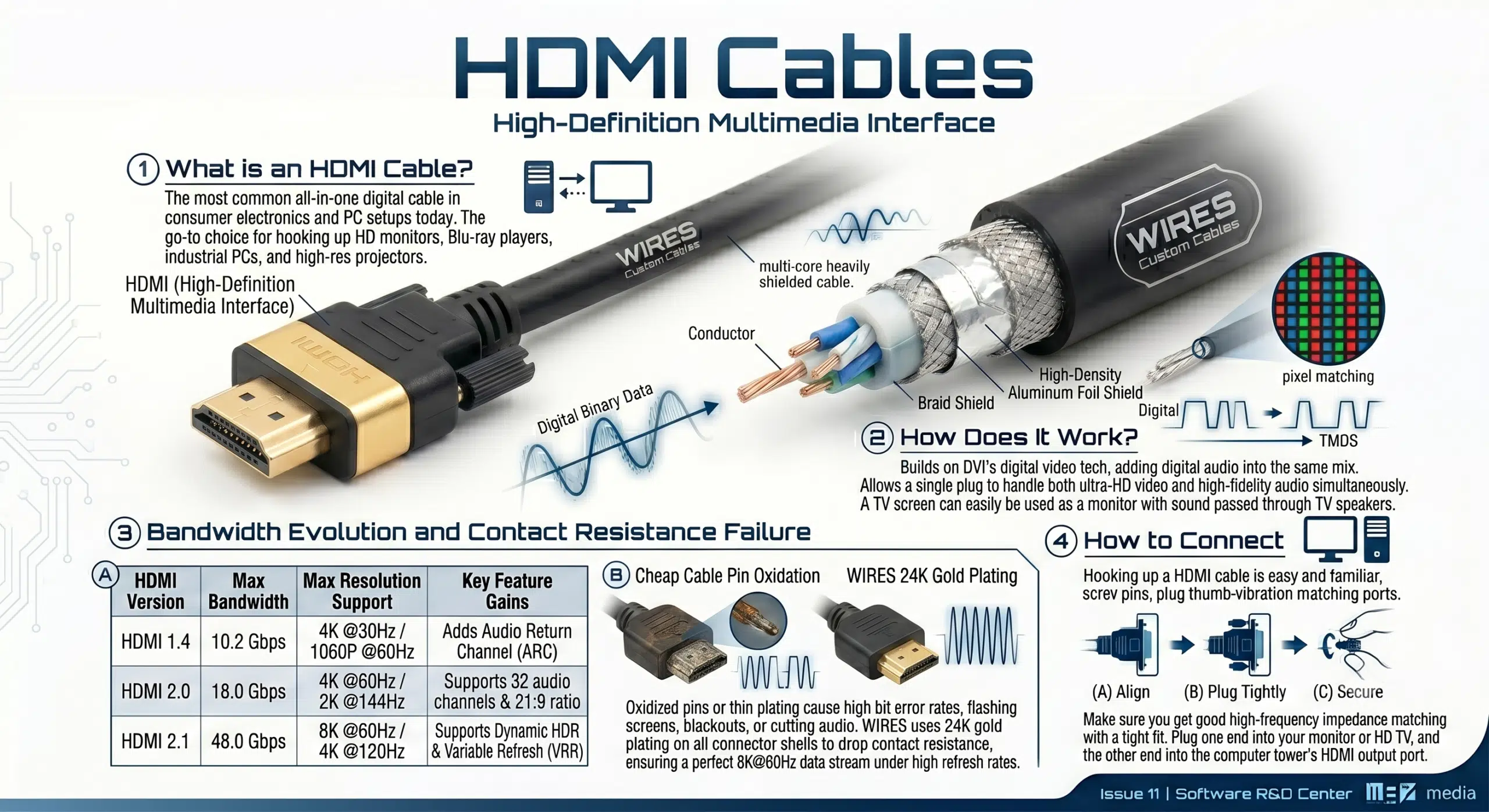
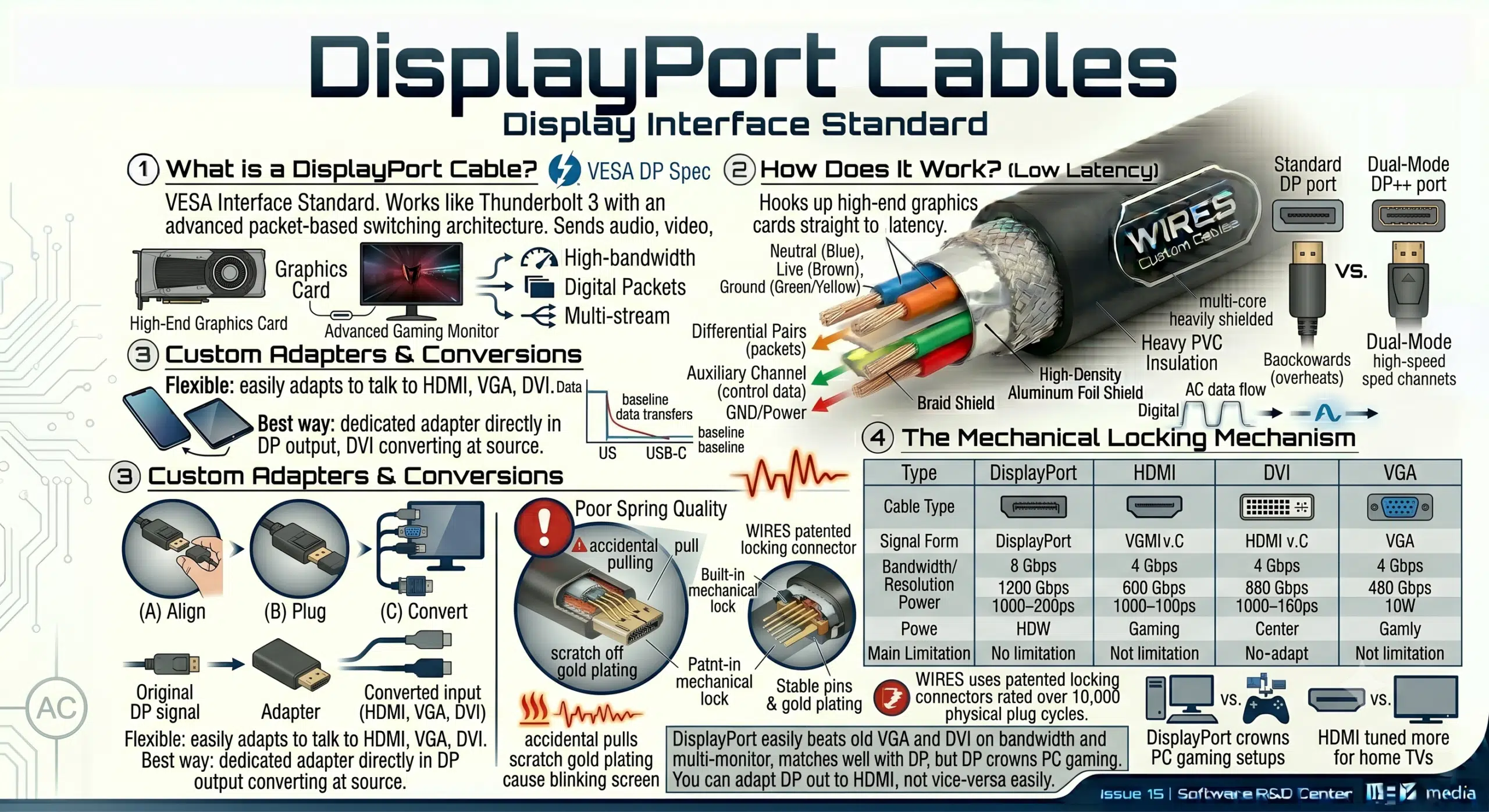
HDMI and DisplayPort are digital interfaces used for computer monitors, televisions, docks, and professional displays. A cable should be selected for the required mode stated by the source and display manufacturers. Refresh rate, color format, audio, HDR, multi-stream operation, and adapter behavior may vary by equipment generation and configuration.
DisplayPort adapters deserve special care. A source marked DP++ may support a passive adapter for certain legacy modes, whereas other conversions require active electronics. HDMI-to-DisplayPort is not automatically the same as DisplayPort-to-HDMI. Treat a converter as a protocol-specific device, not merely a connector change.
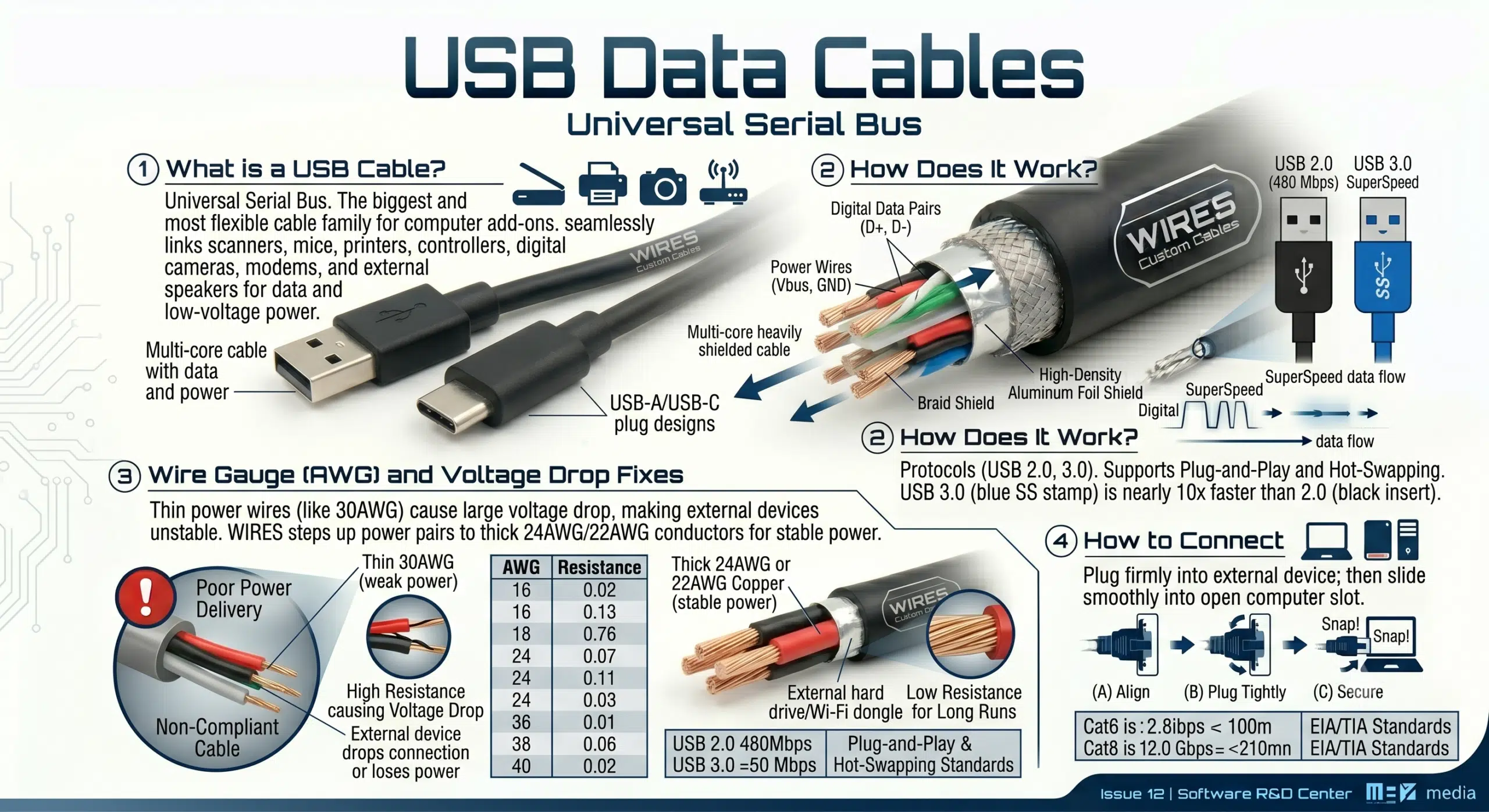
USB Type-A, Type-B, Micro-B, and USB-C describe connector families. Data rate and charging behavior come from the supported USB version, cable construction, power negotiation, host, device, and any alternate mode. USB 2.0 has a signaling rate of 480 Mbit/s; USB 3.2 and USB4 modes have different published limits, but a USB-C plug does not by itself guarantee any one of them. For a detailed connector comparison, see USB-A, USB-B, and USB-C compatibility guidance.
When a port must provide display output, dock operation, or higher power, verify that the computer port, peripheral, and cable all explicitly support the same function. A passive adapter cannot convert unrelated protocols. Use labeled, documented products for managed charging or docking systems.
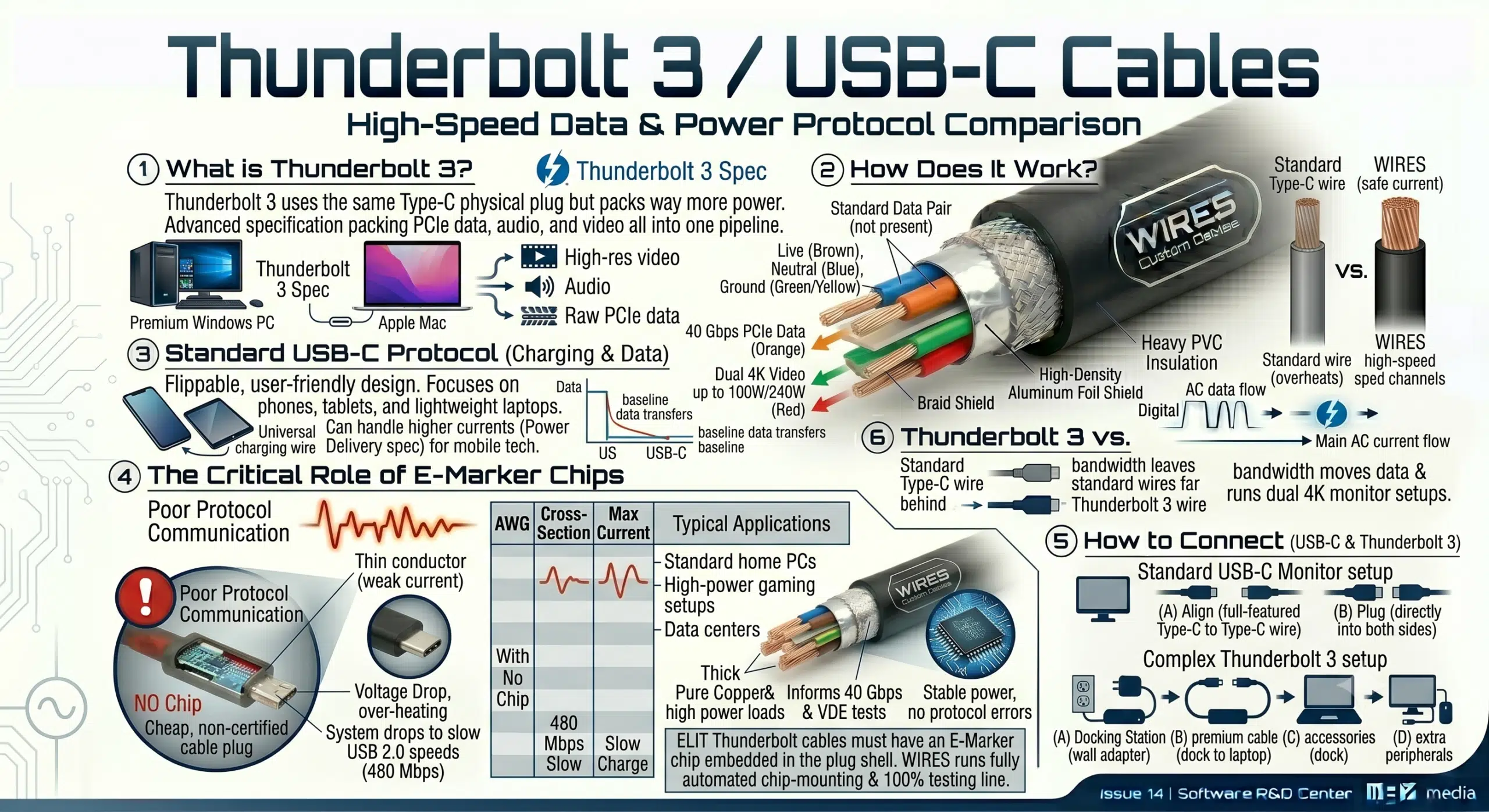
Thunderbolt 3 uses the USB-C connector shape, but USB-C equipment may support USB data only, USB Power Delivery, DisplayPort Alt Mode, Thunderbolt, or a different combination. Check the device documentation and cable markings. Some higher-capability or longer cables include active electronics; compatibility must still be validated with the intended hosts and peripherals.
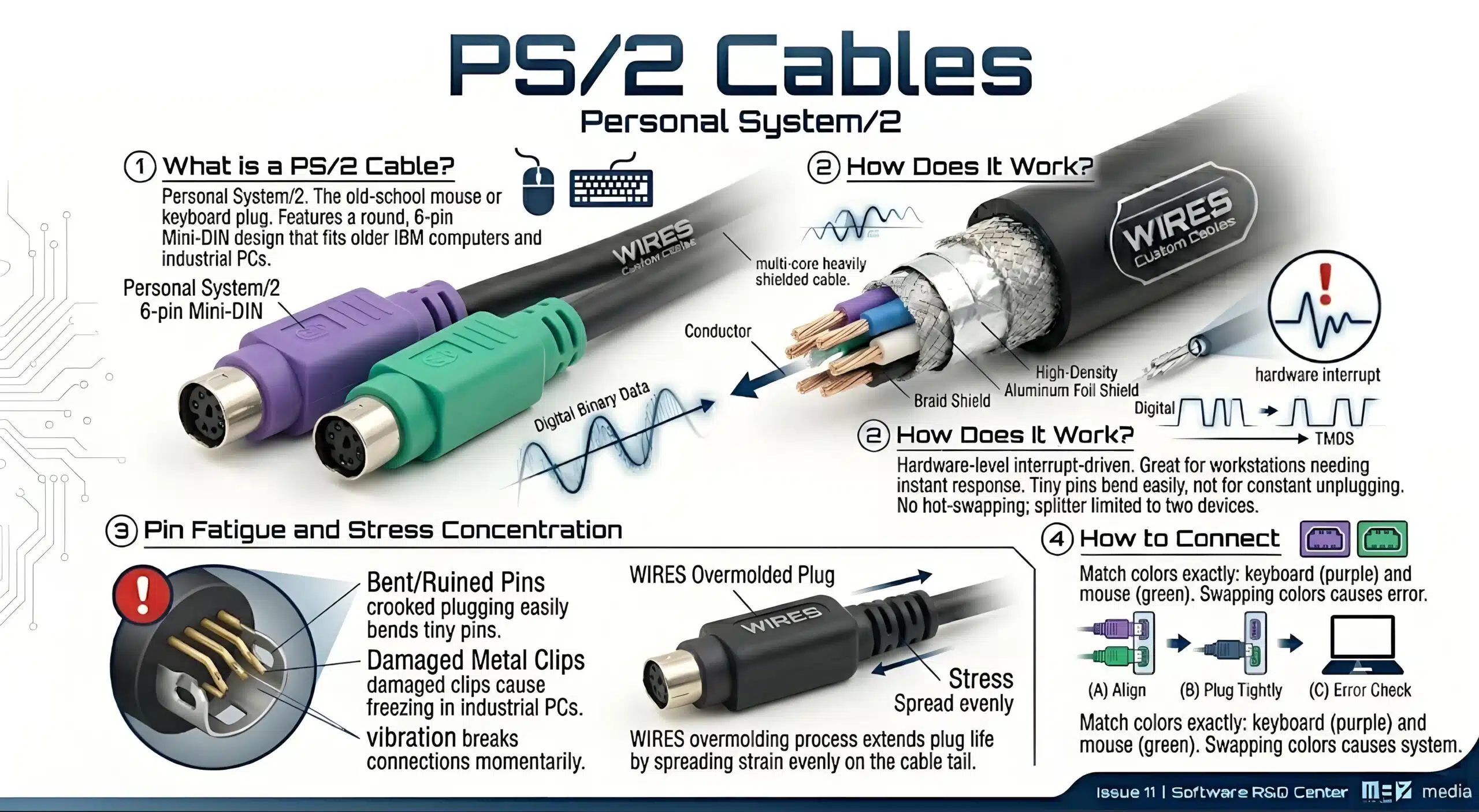
PS/2 connectors are still found on some legacy and industrial systems. Keyboard and mouse ports may be color-coded, but labels and equipment manuals are the reliable reference. Disconnect power when the equipment documentation requires it, align the keyed mini-DIN connector gently, and never force a bent pin.
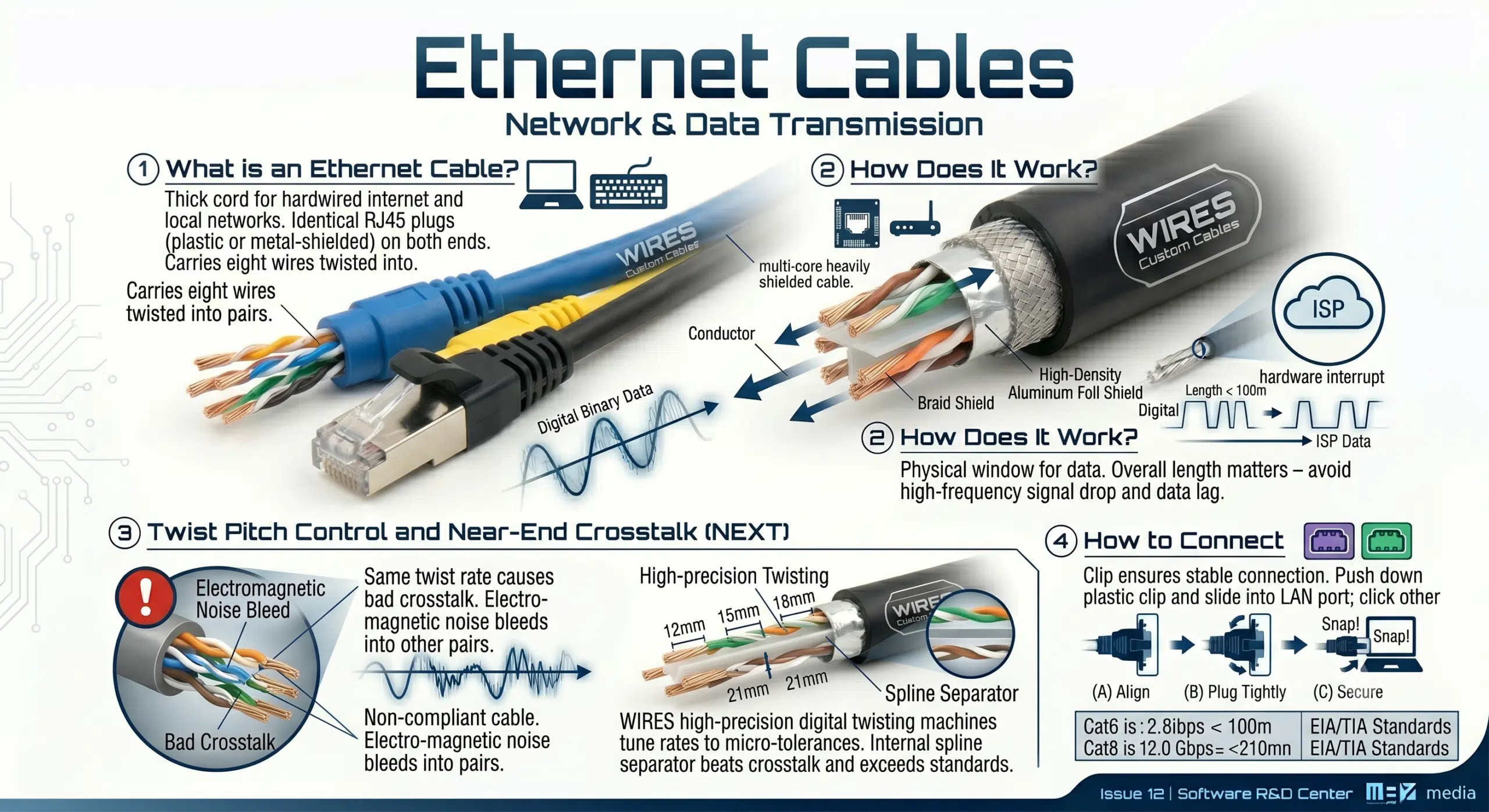
Ethernet patch cords commonly use 8P8C modular connectors often called RJ45. Cable category, conductor construction, termination, installed channel, electromagnetic environment, and PoE requirement all affect selection. For permanent links, use the project standard and structured-cabling design; a patch-cord label alone does not verify end-to-end network performance.
Keep data cables separated from high-noise routes where the installation rules require it, protect connectors from strain and contamination, and test the finished channel with the method appropriate to the project. Related engineering support is available through WIRES process services.
A 3.5 mm connector may be TS, TRS, TRRS, or a device-specific arrangement. It can carry mono audio, stereo audio, microphone signals, control signals, or other functions. It does not automatically establish a balanced connection or universal headset compatibility. Confirm the equipment pinout and grounding scheme before using a splitter or adapter.
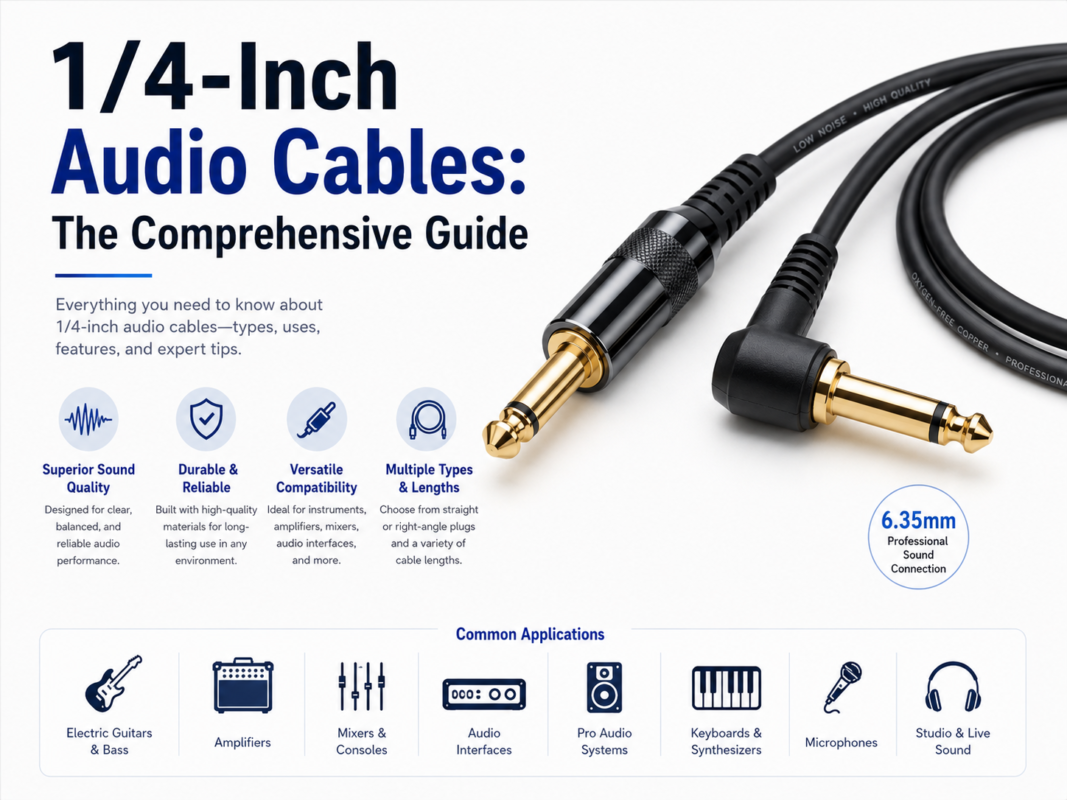
For 1/4-inch TS/TRS selection, see the audio cable selection guide; for noise diagnosis, see TRS ground-loop troubleshooting.
A computer AC power cord connects an equipment inlet to a regional mains outlet. Select it by the equipment inlet, plug type, nominal supply, rated current, conductor size, temperature and flexing environment, and the applicable market requirements. Do not use a plug adapter to overcome an electrical incompatibility, and do not defeat protective earth. Inspect the cord, plug, inlet, and strain relief for damage before service.
For custom low-voltage or equipment power assemblies, start with custom power cable design inputs.
Custom assemblies can combine connector orientation, length, labeling, shielding, overmolding, breakouts, and retention features around a documented application. The correct design is driven by the approved drawing and interface requirements—not by generic claims about speed, durability, or compatibility. Explore rakitan kabel yang dicetak berlebihan, industrial wire harness solutions, dan wire harness vs. cable assembly guide for related planning considerations.
No. Video output depends on the computer port, the supported alternate mode or protocol, the cable, adapter or dock, and the display.
Some HDMI-to-DVI connections can carry compatible digital video, but connector types, source/display support, audio expectations, and the direction of any adapter must be checked.
Analog-video results can be influenced by the source, display, resolution, cable construction, length, connector condition, and electrical noise. Test known-good equipment and confirm the selected input and display settings.
“RJ45” is commonly used for Ethernet plugs, but engineering documentation should identify the actual connector, cable category, termination, and channel requirement.
No. These are different protocols. Review the FireWire connection guide when working with legacy devices.
Provide the connector part numbers, pinout, cable length, electrical role, environment, quantity forecast, drawing or sample, labels, and validation or acceptance requirements. You can also contact WIRES with the available project information.
Use the checklist above to create a clear interface specification before changing a cable or ordering a custom assembly. Where reliability, safety, or compliance is involved, have the final design reviewed against the applicable equipment documentation and project requirements.
 English English
 Vietnamese
 Indonesian
 Arabic
 Spanish