



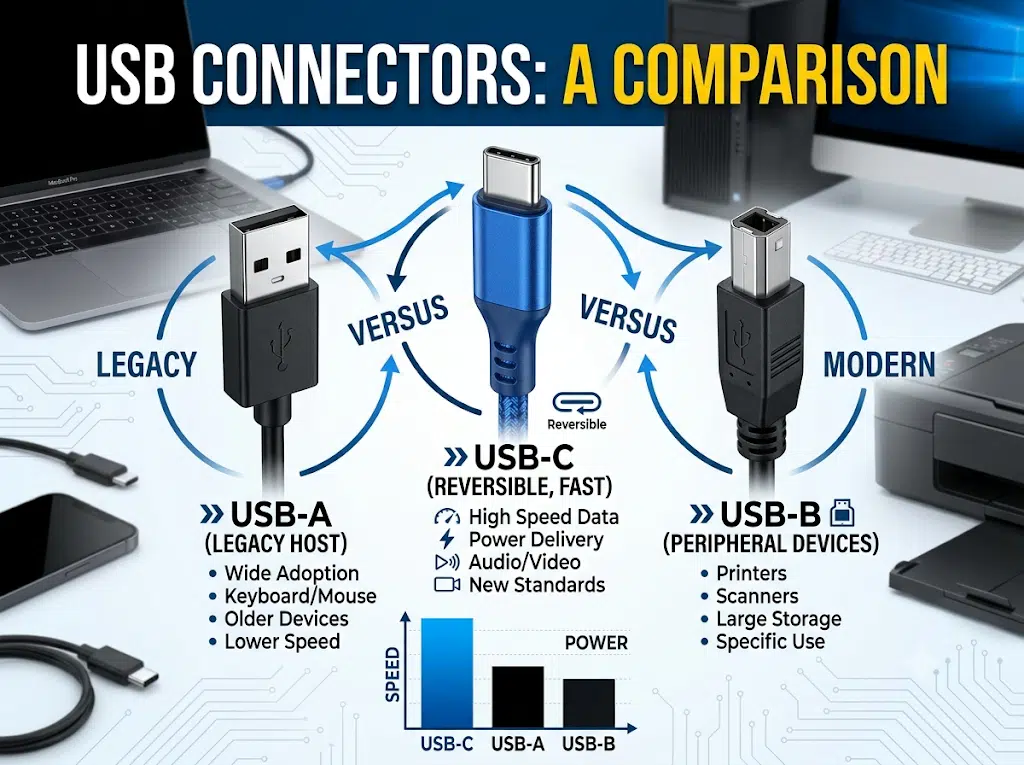
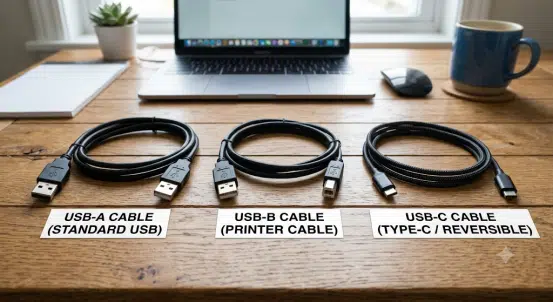
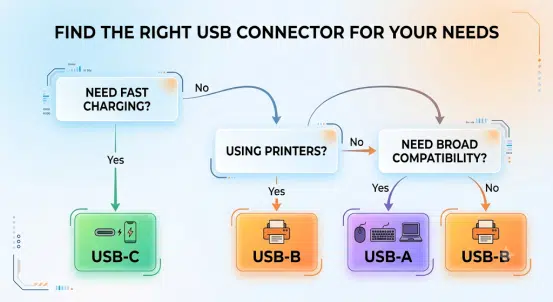
USB-A, USB-B, and USB-C describe connector shapes; they do not by themselves prove a cable’s data speed, charging power, video support, or protocol compatibility. To select the right cable, identify the source and device ports, the required USB generation or alternate mode, power requirement, cable length, environment, and any adapter or legacy-device limits.
This guide compares connector families and compatibility decisions. It is intentionally distinct from the USB A-B printer cable guide, which covers Type-A-to-Type-B printer connections, and the Micro USB cable guide, which covers Micro USB types, OTG, and service use.
| Question | What it determines | What must be checked |
|---|---|---|
| Loại kết nối | Mechanical mating: Type-A, Type-B, Type-C, Mini, or Micro | Physical fit, orientation, retention, and port family |
| USB data generation | Possible signaling mode and bandwidth ceiling | Host, device, port, cable, hub, and controller support |
| Power configuration | Voltage/current negotiation and cable requirement | Source, sink, USB Power Delivery version, cable rating, and safety limits |
| Video or alternate mode | Whether a USB-C system can carry a display signal | Host support, display/dock support, cable, direction, firmware, and mode |
| Protocol conversion | Whether different interfaces can communicate | Active electronics, power, drivers, compatibility, and direction |
A USB-C receptacle may carry USB 2.0 only, high-speed USB, USB4, DisplayPort Alt Mode, Thunderbolt-compatible functions, charging only, or a vendor-specific configuration. A USB-C cable cannot add a mode that the host and device do not support.
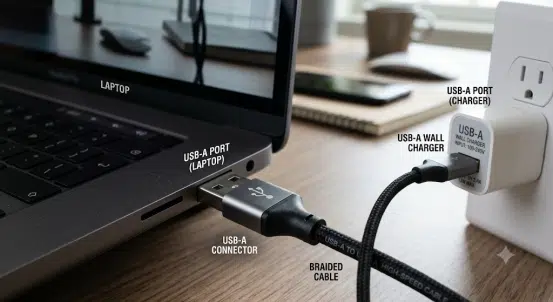
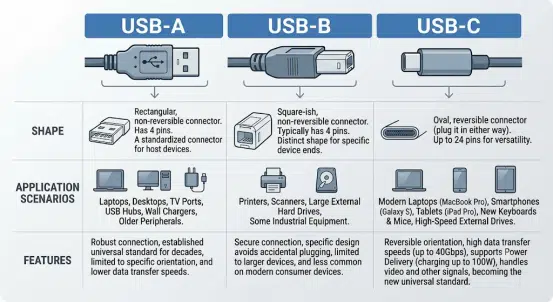
USB Type-A is the flat rectangular connector common on hosts, chargers, computers, hubs, and legacy peripherals. It is not reversible. Type-A exists across multiple USB generations; the same outer connector can be used for USB 2.0 or higher-speed implementations with additional contacts and appropriate cable construction.
| Reference | Interface limit | Important boundary |
|---|---|---|
| USB 2.0 | Up to 480 Mbit/s signaling | Interface limit, not guaranteed file-transfer throughput |
| USB 3.2 Gen 1 | Up to 5 Gbit/s signaling | Requires compatible host, device, port, and cable |
| USB 3.2 Gen 2 | Up to 10 Gbit/s signaling | Connector shape alone does not prove support |
USB Type-A is commonly associated with a host role, but role behavior depends on the complete USB implementation. Check the equipment documentation before treating a Type-A port as a source of data, power, or a particular protocol.
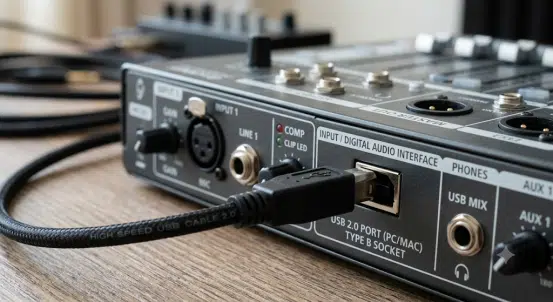
USB Type-B connectors are often found on printers, scanners, audio interfaces, laboratory instruments, and some industrial devices. The classic USB 2.0 Type-B has a nearly square shape with beveled upper corners. The SuperSpeed Type-B variant is larger and adds contacts; it is not interchangeable with every classic Type-B port.
| Type-B family | Typical use | Selection check |
|---|---|---|
| Standard USB 2.0 Type-B | Printers, scanners, instrument control, audio equipment | Device specification, cable length, USB 2.0 data wiring, and power behavior |
| SuperSpeed Type-B | Some storage and high-speed peripheral devices | Confirm the larger connector and compatible USB generation |
| Mini-B and Micro-B | Legacy portable, camera, industrial, or service ports | Do not assume USB 2.0, SuperSpeed, OTG, or charging capability from size alone |
For printer interface selection, compare printer cable types and long-distance solutions. USB Type-B still has a valid role where the installed device and approved replacement cable require it.
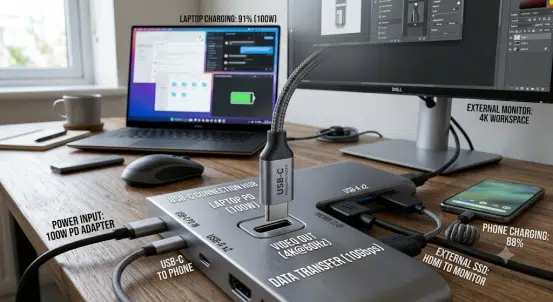
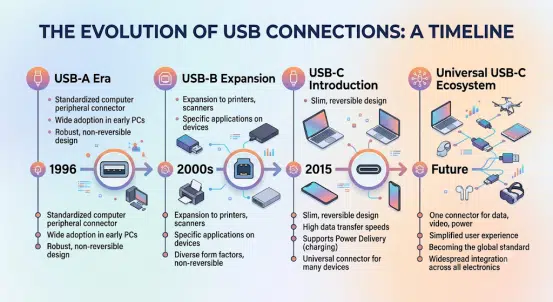
USB Type-C uses a small, reversible 24-contact connector. It can support a wide set of capabilities, but only where the complete system implements them. USB-C is a connector specification; USB 2.0, USB 3.x, USB4, USB Power Delivery, DisplayPort Alt Mode, and other modes are separate specifications and implementation choices.
| Khả năng | What may support it | What must be verified |
|---|---|---|
| USB data | USB 2.0, USB 3.2, USB4 or other supported mode | Host, device, cable, hub, and controller specification |
| Charging | USB-C current or USB Power Delivery negotiation | Source, sink, cable current rating, PD version, and power profile |
| Video | DisplayPort Alt Mode or another supported display implementation | Host, display or dock, cable, resolution, refresh rate, and firmware |
| Thunderbolt-compatible function | Only selected ports, cables, and devices | Port marking, device documentation, cable type, and direction |
| Legacy adaptation | Compatible passive adaptation or active conversion | Protocol, power, role, timing, drivers, and device support |
USB Power Delivery Revision 3.1 defines Extended Power Range profiles up to 240 W in compatible systems. This is not a universal USB-C charging promise. The source, sink, cable, e-marker requirements where applicable, connectors, temperature, and negotiated profile must all support the requested power.
Marketing labels such as “USB 3.0” have been reused and renamed over time. For procurement and engineering, specify the required signaling rate and exact host/device interface rather than relying on a color or generic “USB 3” description.
| USB reference | Maximum signaling rate | Selection note |
|---|---|---|
| USB 2.0 | 480 Mbit/s | Often uses Type-A, Type-B, Micro-B, or Type-C; connector does not change the interface limit |
| USB 3.2 Gen 1 | 5 Gbit/s | Previously marketed under earlier USB 3 names; specify the actual requirement |
| USB 3.2 Gen 2 | 10 Gbit/s | Requires compatible complete channel |
| USB 3.2 Gen 2×2 | 20 Gbit/s | Uses USB-C and requires both lanes plus supporting host and device |
| USB4 | Up to 40 Gbit/s | Requires USB-C and compatible implementation |
| USB4 Version 2.0 | Up to 80 Gbit/s | Requires compatible ports, cable, and devices; do not infer from the USB-C shape |
These are specification signaling limits, not guaranteed application throughput. Storage media, controller, file system, hub, cable length, protocol overhead, display traffic, device power state, and software can all reduce observed performance.
Some USB-C systems carry video through DisplayPort Alt Mode or other supported implementations. A USB-C-to-display cable may be passive for a compatible source and display, while USB-C-to-HDMI, VGA, capture, or some DisplayPort arrangements can require active electronics. Direction matters.
| Scenario | Key question | Common mistake |
|---|---|---|
| USB-C laptop to USB-C monitor | Do both ports support the required video and power roles? | Assuming every USB-C monitor cable carries video |
| USB-C to HDMI display | Does the source support a compatible display mode and does the adapter support the target timing? | Treating every passive adapter as a protocol converter |
| USB-C dock | Which data, display, network, power, and peripheral functions are supported together? | Adding device requirements beyond available bandwidth or power |
| USB-C to legacy device | Is the desired function physical adaptation or protocol conversion? | Expecting a simple cable to convert USB into FireWire, serial, DVI, or another protocol |
For legacy connection planning, see connecting FireWire to modern computers. A passive FireWire-to-USB cable does not perform protocol conversion.
Custom USB assemblies may need right-angle exits, panel mounts, locking or retention features, overmolds, labels, branch lengths, power conductors, shielding, or ruggedized jackets. Those choices should follow the equipment interface and validation plan, not a generic claim of universal compatibility.
| Input | Why it matters |
|---|---|
| Host and device part numbers | Confirms ports, supported modes, power roles, and firmware limitations |
| Required data rate and protocol | Sets channel, cable, connector, and test requirements |
| Power requirement | Controls conductor, current, e-marker, PD profile, and safety decisions |
| Video or dock functions | Defines alternate mode, direction, adapters, display timing, and bandwidth sharing |
| Length and route | Affects signal margin, voltage drop, strain relief, and installed serviceability |
| Environment | Defines flexing, temperature, fluids, abrasion, ingress, and material needs |
| Mechanical integration | Defines plug orientation, panel mount, retention, labeling, overmold, and bend protection |
| Validation plan | Defines continuity, power, data, display, functional, and environmental checks |
For USB equipment assemblies, see Bộ dây dẫn điện cho thiết bị điện tử tiêu dùng, custom MIDI cables, và industrial AV cable assemblies. WIRES’ process and services và quy trình tùy chỉnh explain how interface, drawing, and validation requirements are controlled.
No. USB-C is a connector shape. A USB-C port can implement USB 2.0 or a higher-speed mode; a Type-A or Type-B port can also implement different USB generations. Check the actual host, device, and cable specification.
No. Video requires a compatible source, display or dock, cable, and supported display implementation. The USB-C connector alone does not prove DisplayPort Alt Mode or another video capability.
No. 240 W is an upper USB Power Delivery 3.1 Extended Power Range reference for compatible systems. The source, sink, cable, negotiated profile, and thermal limits must support it.
No. USB4 uses USB-C and requires a compatible USB4 channel. A Type-A-to-Type-C cable can be useful for supported USB data or charging functions, but it does not create USB4 capability.
No. They are different connector families. USB-B, Mini-B, Micro-B, and SuperSpeed Micro-B have different shapes, pinouts, and supported equipment. Verify the port before ordering.
No. USB and FireWire use different protocols. A working solution needs a supported host, device, operating system, driver path, and active interface where required.
Provide source and device models, connector types, data mode, power requirement, video or dock functions, length, route, environment, mechanical integration, labels, and test requirements.
Choose USB-A, USB-B, or USB-C only after identifying what the complete channel must do. A correctly specified cable matches the connector, data mode, power role, optional video path, route, environment, and acceptance test. Send equipment details, drawings, and validation requirements through the WIRES contact page for a custom assembly review.
 English English
 Vietnamese
 Indonesian
 Arabic
 Spanish


