



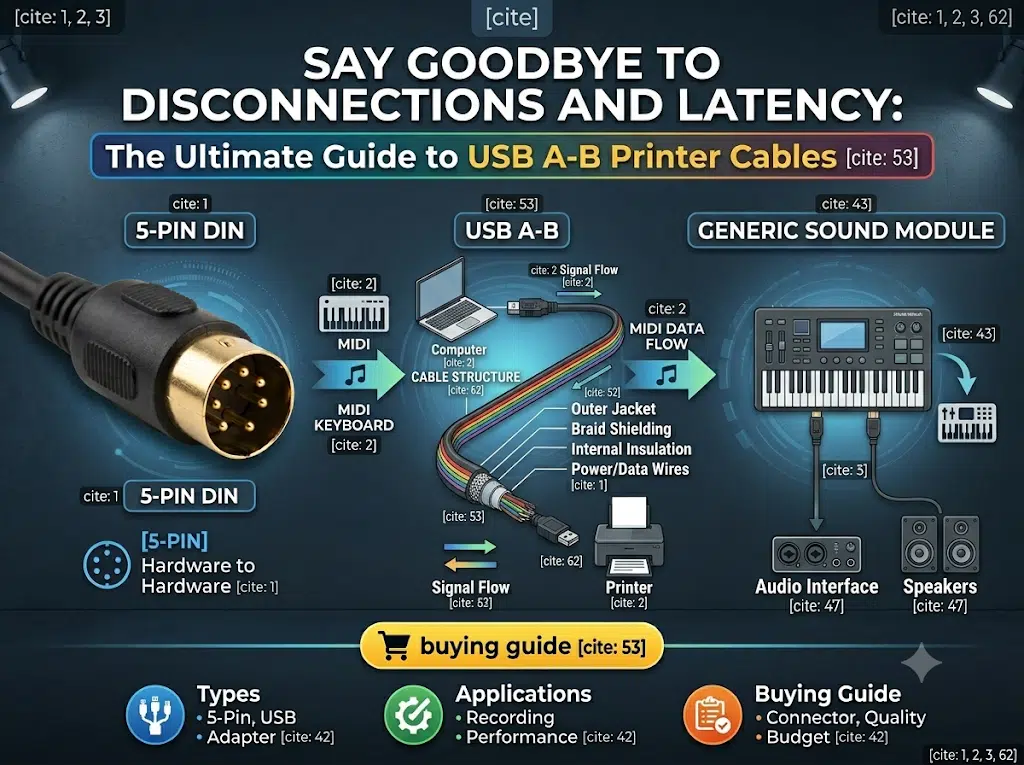
Direct answer: A USB A-B printer cable connects a computer with a USB-A port to a peripheral with a USB Type-B port. It is widely used with printers, scanners, MIDI controllers, audio interfaces, and selected industrial equipment. The correct choice depends on the device-side connector, USB generation, cable length, shielding, mechanical environment, and the requirements of the complete system.
A wired connection can make diagnosis easier than a wireless connection, but no cable can guarantee that every disconnection, driver problem, power issue, or latency source will disappear. This guide explains the interface options, selection decisions, installation checks, and purchasing information that help buyers specify a USB A-B cable accurately.
A USB A-B cable has two different connector ends:
The connector shape helps prevent an incorrect connection, but the shape alone does not identify the cable’s USB speed, power behavior, shielding, or suitability for a particular installation. Check the device manual and port marking before ordering. For a wider overview of connector families, see the USB connector types guide.
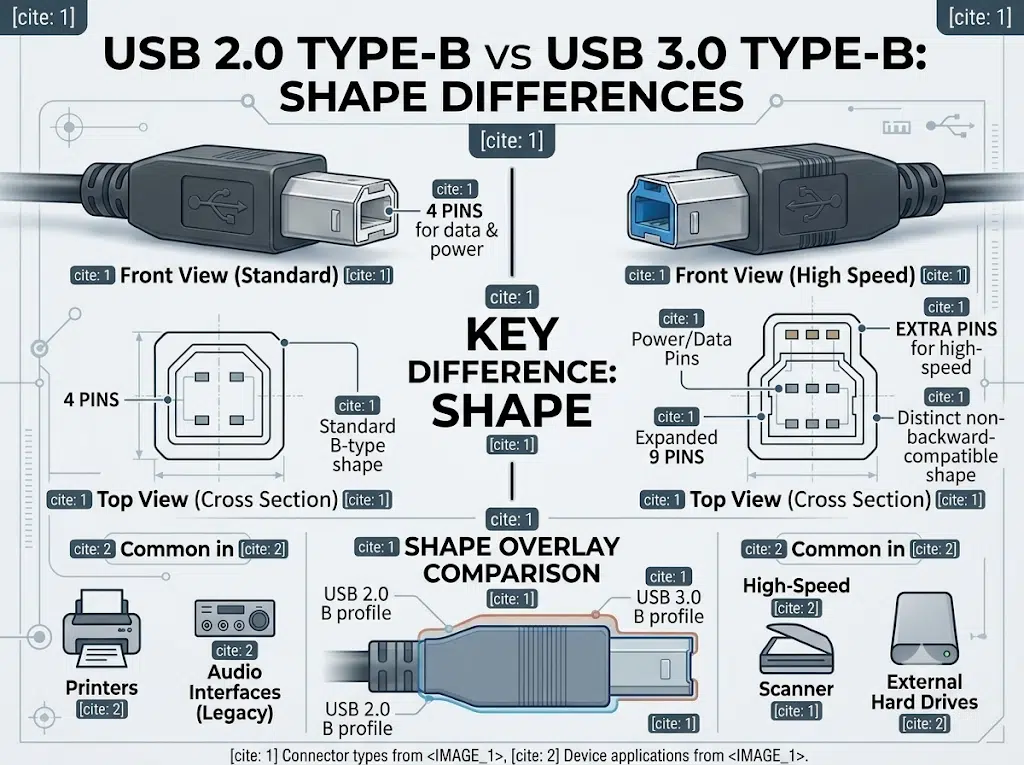
USB Type-B is a connector family rather than one universal performance class. The most common versions are:
| Connector family | Typical device use | What to verify |
|---|---|---|
| USB 2.0 Standard-B | Printers, basic scanners, MIDI controllers, and many audio interfaces | USB generation, device power requirements, cable length, and port condition |
| USB 3.x Standard-B | Some high-speed peripherals and storage equipment | Wider device-side port, matching cable, host capability, and backward-compatibility limits |
| Mini-B or Micro-B | Older cameras, instruments, embedded products, and compact equipment | Exact mechanical variant and pin configuration; these are not the same as Standard-B |
| Powered or proprietary variants | Selected equipment with additional power or control requirements | OEM drawing, device manual, pinout, and cable assembly requirements |
A USB 2.0 Standard-B plug should not be forced into a USB 3.x Standard-B receptacle. A cable may fit one end while still failing to support the device’s intended data path. When the port is unusual, provide a clear photograph, part number, or drawing before selecting a replacement.
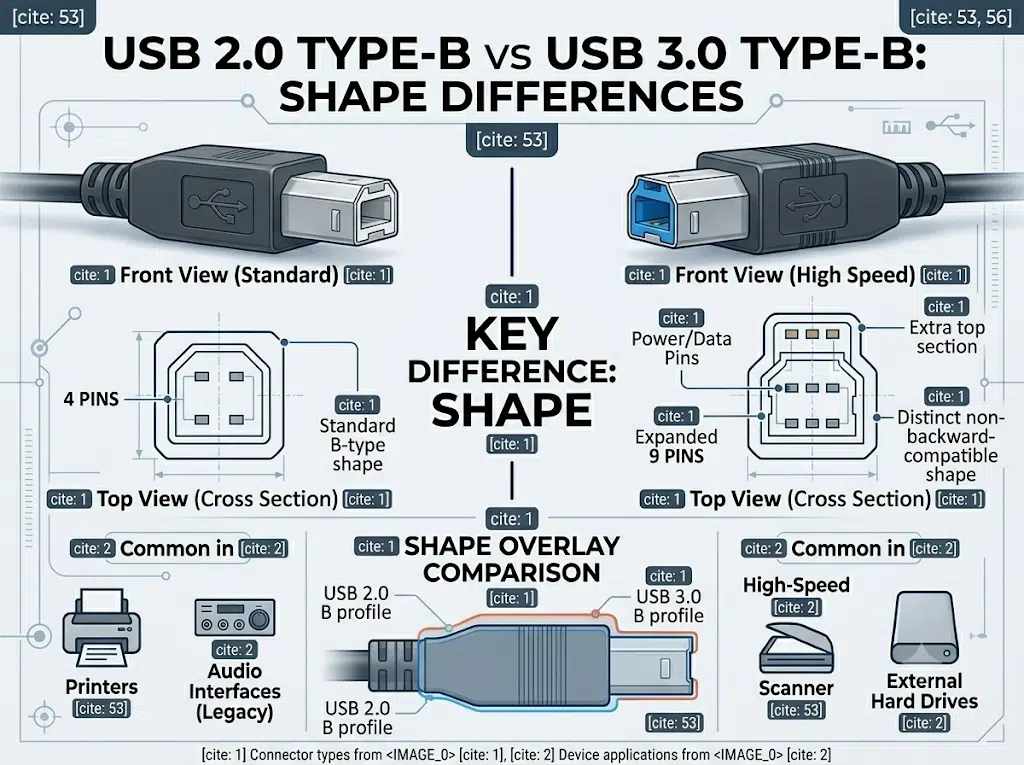
USB generations define signaling and protocol capabilities, but the actual result depends on the host, device, hub, controller, cable construction, operating system, and workload. A higher-rated cable cannot make a USB 2.0 device operate as a USB 3.x device.
| Decision | Practical guidance |
|---|---|
| Identify the device port | Confirm Standard-B, USB 3.x Standard-B, Mini-B, Micro-B, or a proprietary connector. |
| Check the host port | Confirm that the computer or controller supports the required USB generation and that the port is not a charge-only port. |
| Check the cable specification | Match the cable’s USB generation, length, shielding, connector construction, and intended application. |
| Check the full path | Hubs, adapters, front-panel ports, extension cables, and docking stations can affect enumeration and stability. |
For a normal printer connection, USB 2.0 may be appropriate when both the host and device use USB 2.0. For a high-speed scanner or storage device, the device manual may require a USB 3.x Type-B cable and a compatible host path. Do not infer real file-transfer speed from the connector color or from a marketing label alone.
USB A-B cables are commonly used for local printer and scanner connections. If a printer appears offline, check the cable seating, selected printer, USB port, driver, queue, and device power before replacing the cable. A direct connection can simplify troubleshooting, but the cable is only one part of the communication path. The related printer cable troubleshooting guide covers length and connection checks in more detail.
Many MIDI controllers, digital pianos, and audio interfaces use USB Type-B. For these devices, a stable data path matters, but audible noise or latency may also originate in the interface settings, buffer size, clocking, grounding, drivers, or application software. A cable should be selected for the device specification and installation environment rather than described as a universal cure for pops, clicks, or latency.
Some 3D printers, laboratory instruments, and industrial controllers use USB Type-B for setup, monitoring, or data transfer. Long unattended jobs need a complete connection review: host sleep settings, driver behavior, connector retention, cable routing, strain relief, and recovery procedure. If the cable is part of a larger assembly, an overmolded cable assembly may help integrate strain relief and environmental protection when the design requires it.
A USB A-B printer cable is normally specified for data communication between a host and a device. It should not be treated as a substitute for a dedicated power cable unless the equipment documentation explicitly defines that use. Check:
For equipment that needs a separate power path, compare the requirements with this power cable customization guide. Do not combine power and signal conductors without checking the equipment drawing and applicable safety requirements.
Length should be selected from the USB generation, cable design, host-device combination, and installation conditions. A longer cable creates more opportunity for signal loss, electromagnetic coupling, voltage drop, connector movement, and accidental damage. The correct remedy for a longer run may be a qualified active extension, powered hub, different host location, or another interface architecture. It is not automatically a thicker passive cable.
| Symptom | Checks before replacing the cable |
|---|---|
| Device is not recognized | Reconnect both ends, test another known-good port, remove an unnecessary hub, restart the device, and check driver or operating-system status. |
| Printer shows offline | Confirm the selected printer, queue, power state, USB port, driver, and whether another application has the port open. |
| Intermittent disconnects | Inspect connector retention, cable routing, strain at the plug, hub power, sleep settings, and nearby interference sources. |
| Slow or failed transfer | Confirm USB generation on both ends, remove protocol-mismatched adapters, check the application, and compare with a short known-good cable. |
| Audio or MIDI timing problem | Check buffer settings, drivers, device firmware, clocking, grounding, and the application before attributing the problem to the cable. |
Shielding can reduce susceptibility to electromagnetic interference, but its effectiveness depends on the cable construction, connector termination, grounding arrangement, frequency range, routing, and the surrounding system. Avoid absolute statements such as “completely blocks interference” unless a defined test method and result support the claim.
Useful design questions include:
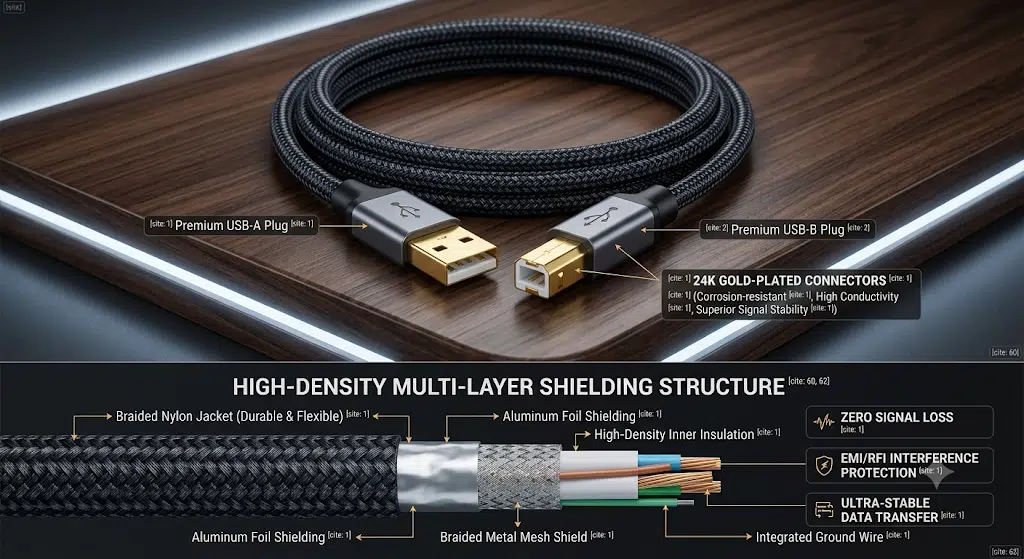
A retail cable may be suitable for a simple office connection. A custom assembly becomes more useful when the project requires a defined connector, overmold, label, bend direction, jacket, shielding termination, mounting feature, or system-specific test plan. In an industrial or medical environment, the cable should be evaluated as part of the equipment wiring rather than as an isolated accessory.
For audiovisual equipment, review the custom industrial AV cable assembly guide. For diagnostic equipment, see the IVD equipment custom cable guide. For broader integration decisions, the wire harness and cable assembly specification guide explains how to define interfaces, protection, labels, testing, and documentation.
When requesting a quotation, provide the device model, connector photographs, desired length, operating environment, annual demand estimate if available, packaging needs, and any customer-approved specification. WIRES can review these inputs through the customized cable process, build an initial sample when appropriate through the prototype cable assembly service, and align inspection requirements with the wire harness quality guide.
Use a cable with the correct device-side connector and USB generation for the printer. Also check the required length, operating environment, and host port. A physically compatible cable may still be unsuitable if the printer uses a different Type-B variant or if the installation needs additional protection.
No. They have different device-side connector geometries and electrical capabilities. Confirm the receptacle and cable specification instead of relying on color or a product photo.
No. The result depends on the USB generation, cable construction, host, device, hubs, and installation conditions. Long runs should be reviewed as a complete system and may require an active extension or another connection method.
It can remove a wireless link from the troubleshooting path, but it cannot fix every offline condition. Check power, drivers, queue settings, the selected port, sleep behavior, and the printer itself.
Many MIDI controllers use USB Type-B, but the exact connector, driver, power behavior, and operating-system support must be confirmed for the model. Cable selection alone does not determine latency or audio performance.
Send the connector part numbers or clear photos, pinout, required length, USB generation, jacket and shielding requirements, bend or mounting constraints, device models, and any drawing or inspection criteria.
Choose a custom assembly when standard cables do not meet the connector, overmold, routing, strain relief, labeling, shielding, environmental, or testing requirements of the equipment.
A USB A-B printer cable is a simple interface with several important variables. Select it by connector family, USB generation, length, shielding, mechanical design, and complete-system requirements. Use evidence from the device manual, drawing, and applicable specification rather than relying on universal performance promises. For project-specific support, contact WIRES with the device and installation details.
 English English
 Vietnamese
 Indonesian
 Arabic
 Spanish


