



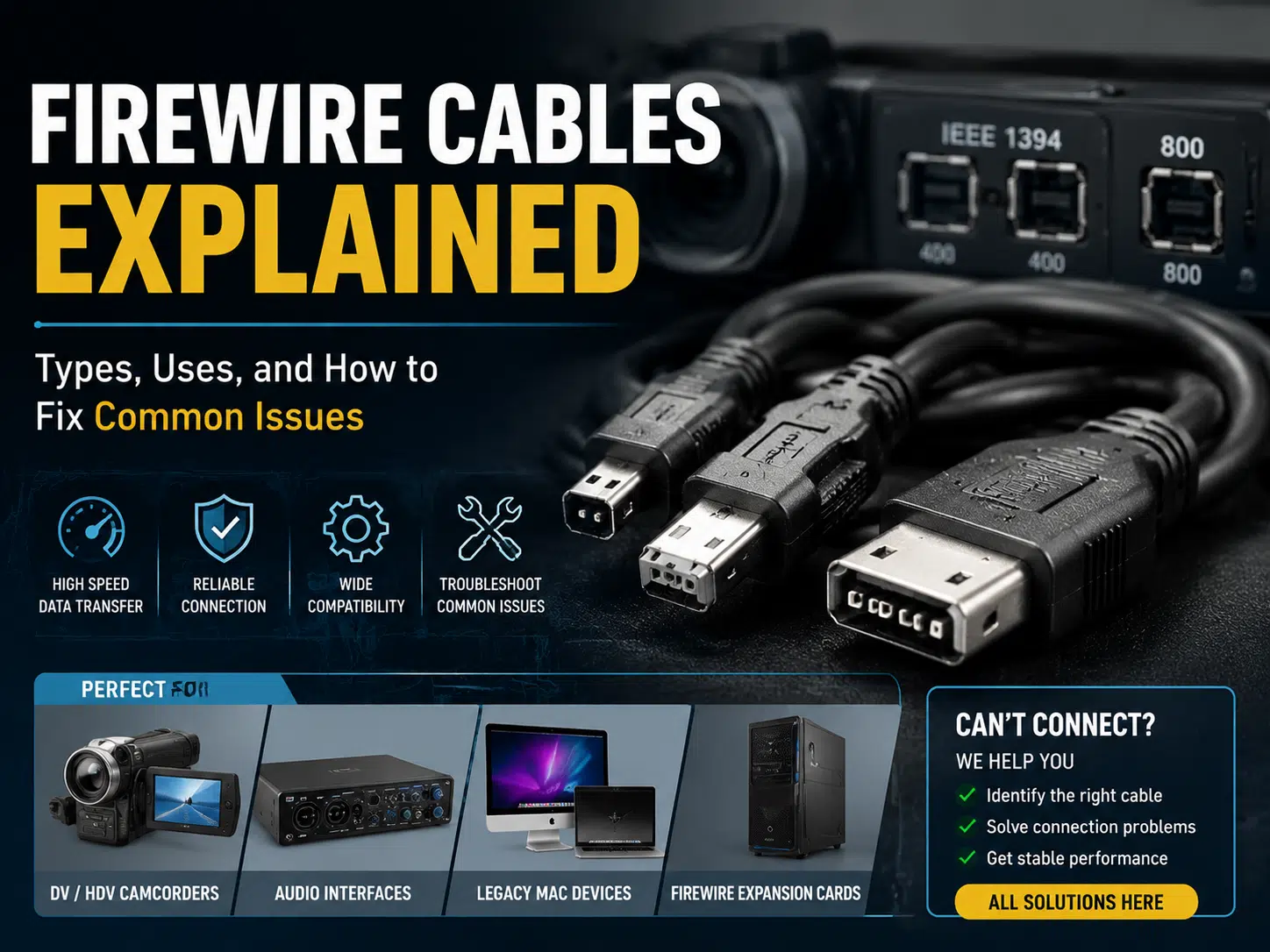
Quick answer: FireWire cables use the IEEE 1394 interface and are mainly found on legacy DV camcorders, professional audio interfaces, storage devices, scanners, and industrial equipment. FireWire 400 commonly uses 4-pin or 6-pin connectors and supports signaling up to 400 Mbit/s, while FireWire 800 commonly uses a 9-pin connector and supports signaling up to 800 Mbit/s.
Select a cable by the connector on both devices, the required IEEE 1394 version, bus-power needs, cable construction, operating-system support, and device drivers. A cable can make the physical connection, but it cannot add protocol support that the computer or device does not have. For current-computer connection options, use the separate guide on connecting FireWire devices to modern computers.
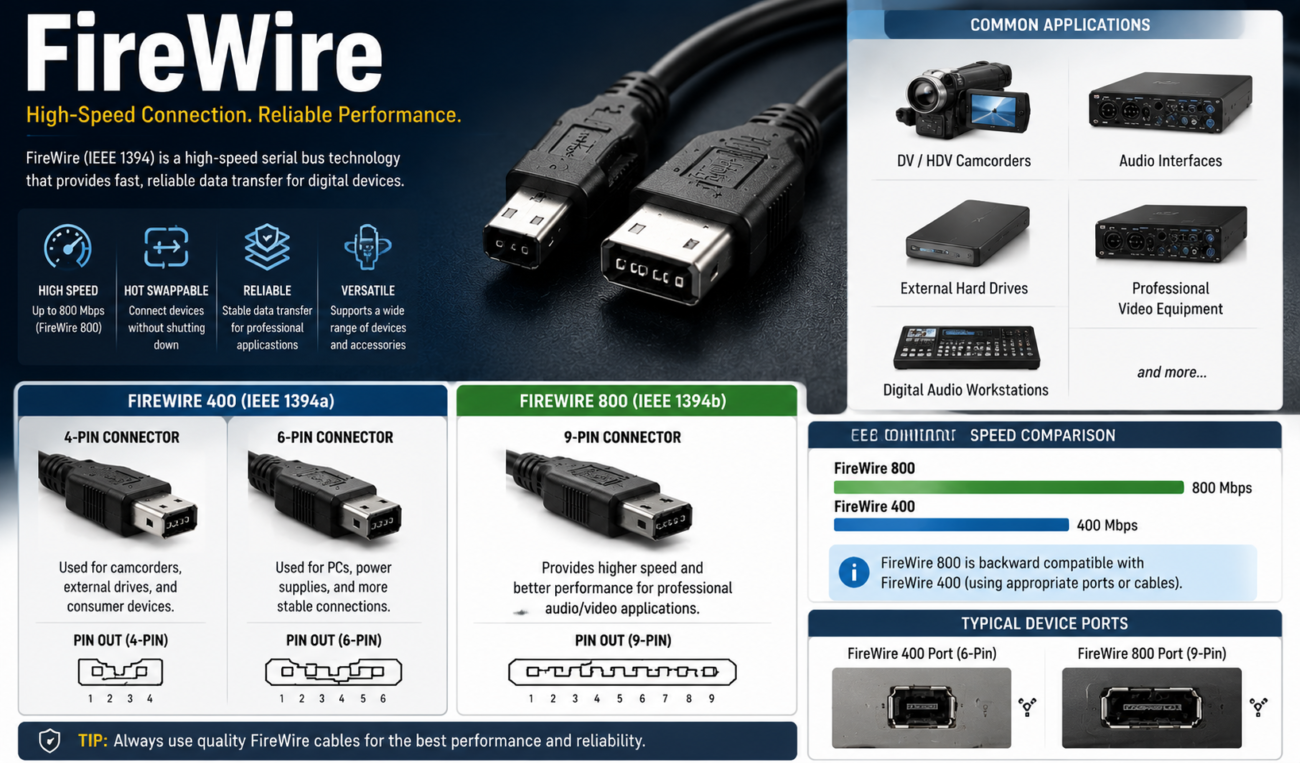
FireWire is the consumer name commonly used for IEEE 1394, a serial bus developed for sustained data transfer and peer-to-peer device communication. It became important in digital video, audio production, external storage, and equipment that needed predictable streaming performance.
A FireWire cable contains signal conductors, shielding, insulation, and connector terminations. Some connector formats also include conductors for bus power. FireWire is not Ethernet, USB, HDMI, or Thunderbolt, even when an adapter chain uses connectors that look similar.
For sourcing and construction decisions, it is useful to distinguish a standard interface cable from a multi-branch harness or rugged assembly. See the wire harness and cable assembly comparison.
| Common name | IEEE reference | Typical connector | Maximum signaling rate | Common applications |
|---|---|---|---|---|
| FireWire 400, 4-pin | IEEE 1394a | 4-pin | Up to 400 Mbit/s | DV camcorders and compact portable equipment |
| FireWire 400, 6-pin | IEEE 1394a | 6-pin | Up to 400 Mbit/s | Desktop computers, audio interfaces, external drives |
| FireWire 800 | IEEE 1394b | 9-pin bilingual connector | Up to 800 Mbit/s | Faster external storage, professional audio and video equipment |
| Bilingual FireWire cable | 1394a-to-1394b connection | 9-pin to 6-pin or 9-pin to 4-pin | Limited by the slower interface and device | Connecting FireWire 400 equipment to a FireWire 800 port |
The figures above are interface signaling limits, not guaranteed file-transfer speed. Device electronics, storage media, bus sharing, operating system, drivers, cable condition, and protocol overhead affect actual performance.
The compact 4-pin connector is common on DV camcorders and portable equipment. It carries FireWire data but normally does not provide the bus-power conductors found in larger connector formats. The connected device therefore needs its own power source unless the equipment uses another approved arrangement.
The 6-pin connector includes the FireWire 400 signal pairs and power contacts. A host port may provide bus power, but the available voltage and current depend on the host design and device specification. Do not assume that every 6-pin port can power every peripheral.
The 9-pin connector is associated with IEEE 1394b and a revised signaling arrangement. It is designed to support FireWire 800 operation and can connect to FireWire 400 equipment through a correctly wired bilingual cable. The complete connection normally operates at the capability shared by the host, cable, adapter, and peripheral.
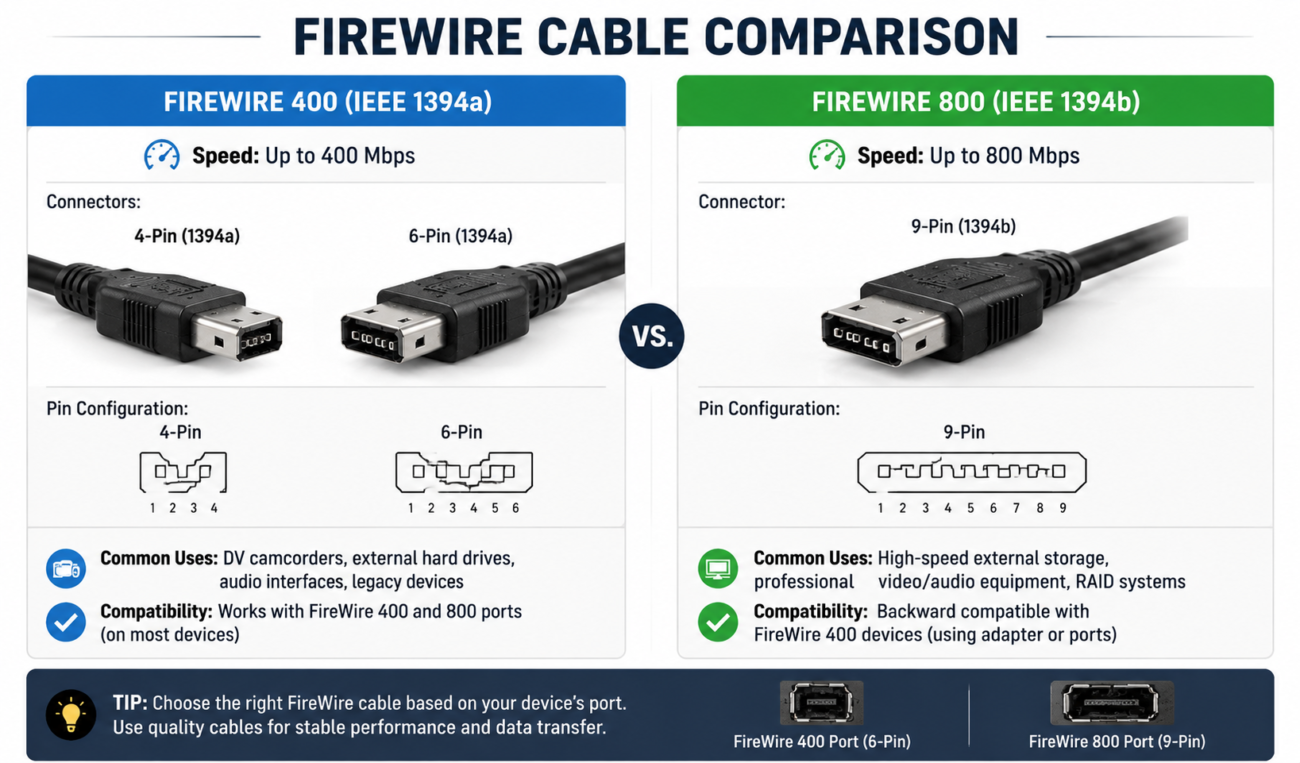
They can often communicate through a suitable 9-pin-to-6-pin or 9-pin-to-4-pin bilingual cable because IEEE 1394b was designed with backward-compatibility mechanisms. However, physical connection does not guarantee that a specific device, adapter, driver, and operating system combination will work.
Many tape-based camcorders use FireWire for digital video transfer and device control. The cable must match the camera connector and host interface, while capture software must support the camera format and operating system.
FireWire audio interfaces remain in studios and live-production systems where the hardware and driver environment has been kept stable. Cable faults can interrupt audio, but clocking, sample-rate settings, drivers, power, and host-controller compatibility should also be checked.
Audio-interface users may also need the guides to 1/4-inch TS and TRS audio cables, TRS cable ground-loop noise, and MIDI cable selection. These cables serve different interfaces and should not be confused with the FireWire data connection.
Older hard-drive enclosures, optical drives, scanners, and measurement devices may use FireWire 400 or 800. Storage performance depends on the device, media, controller, and bus configuration, not only the printed cable category.
Some machine-vision, test, laboratory, and embedded systems continue to use IEEE 1394 because their hardware and software were validated together. Replacing FireWire with another interface can require equipment, software, timing, and regulatory revalidation.
For project-specific cable construction or equipment integration, review the available custom cable assembly options.
| Construction feature | Why it matters | What to verify |
|---|---|---|
| Signal-pair geometry | Affects impedance consistency and signal integrity | Interface-appropriate cable construction and manufacturer data |
| Shielding | Helps control emissions and susceptibility | Shield continuity, connector termination, coverage, and installation environment |
| Connector termination | Poor joints can create intermittent links or excessive resistance | Pinout, solder or termination process, strain relief, and inspection criteria |
| Bus-power conductors | Must support the host and device power arrangement | Connector type, conductor construction, voltage drop, and equipment requirements |
| Outer jacket | Protects the cable from bending, abrasion, and environment | Flexibility, temperature, flame, chemical, or abrasion needs for the project |
| Length and routing | Can affect signal margin and physical damage risk | Equipment guidance, bend radius, adapters, routing, and strain |
A custom FireWire assembly should be controlled by drawing, pinout, connector part number, cable specification, length, shielding termination, and test plan. The custom cable development process and prototype cable assembly service describe how fit and function can be checked before release.
| Symptom | Possible causes | Checks |
|---|---|---|
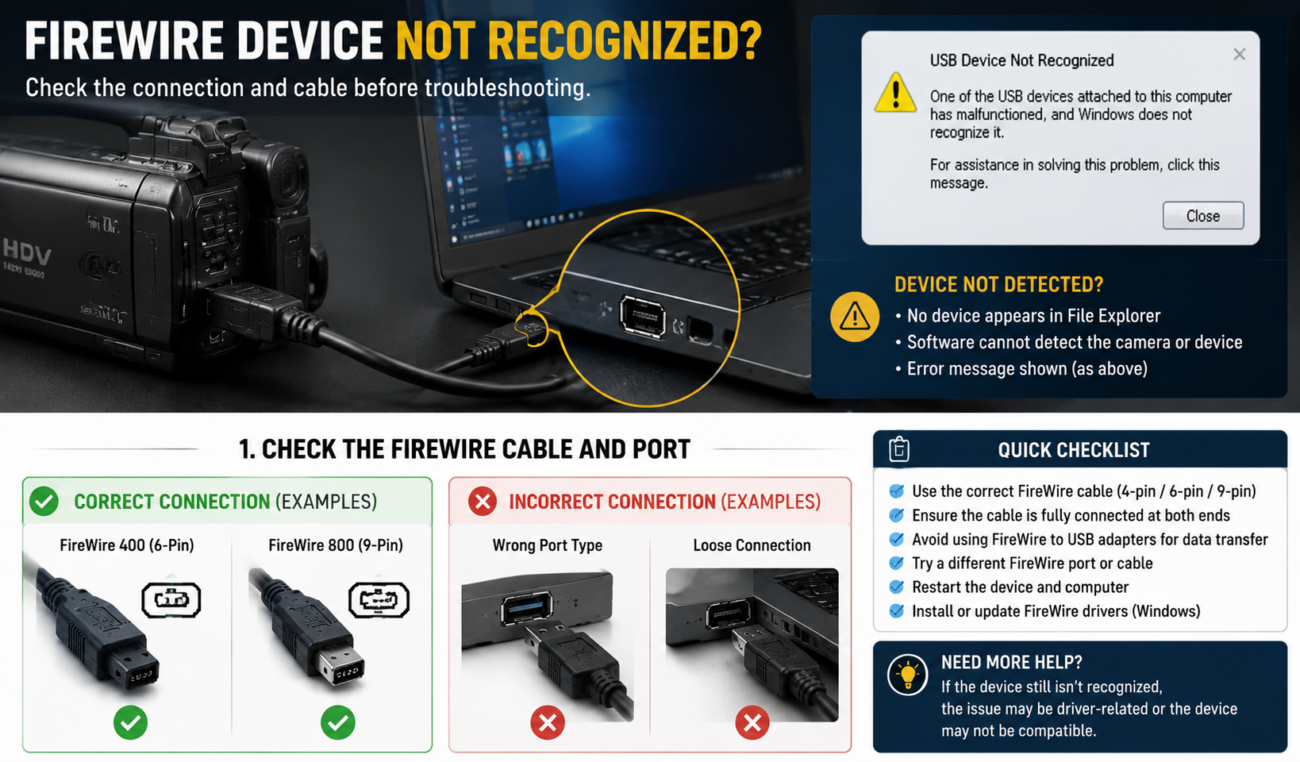
| Device is not recognized | Wrong cable, unsupported driver, controller issue, device power, damaged port | Confirm connectors, power, device manager or system information, approved driver, and another known-good cable |
| Transfer stops or drops frames | Cable damage, storage limitation, bus sharing, software setting, driver instability | Inspect connectors, reduce bus load, check storage performance, capture settings, and logs |
| FireWire 400 device fails on FireWire 800 port | Incorrect bilingual cable, power requirement, unsupported adapter or software | Confirm 9-to-6 or 9-to-4 wiring, separate power, adapter path, and device support |
| Audio clicks, dropouts, or disconnects | Buffer or clock settings, driver issue, cable fault, controller compatibility, power | Check the interface manual, clock source, buffer, firmware, cable, power supply, and controller |
| Passive FireWire-to-USB cable does not work | No protocol conversion electronics | Use a supported FireWire host or active conversion/workflow approved for the device |
| Connector feels loose | Worn port, damaged shell, inadequate strain relief, cable load | Inspect both mating interfaces and support the cable without forcing the connector |
If a production cable is being evaluated, record the failure condition and test the pinout, continuity, shield continuity, connector workmanship, and application performance. The cable and wire harness quality guide provides a general control framework.
FireWire 400 is associated with IEEE 1394a, usually uses 4-pin or 6-pin connectors, and supports signaling up to 400 Mbit/s. FireWire 800 is associated with IEEE 1394b, usually uses a 9-pin connector, and supports signaling up to 800 Mbit/s.
Often yes, with the correct 9-pin-to-6-pin or 9-pin-to-4-pin bilingual cable. Speed is limited by the slower interface, and power, driver, device, and operating-system compatibility still need verification.
No passive cable can convert FireWire protocol to USB. A working solution requires supported host hardware or active conversion designed for the device and workflow.
No. USB-C describes a connector shape and can carry different protocols. A USB-C port does not automatically support Thunderbolt, and Thunderbolt support alone does not guarantee that a particular FireWire adapter chain, driver, and legacy device will work.
The common 4-pin FireWire connector carries data but normally omits the bus-power contacts available on larger connector formats. The camera or peripheral therefore uses its battery or external power supply.
Provide both connector types, required IEEE 1394 version, pinout, bus-power requirements, length, cable construction, shielding, jacket environment, strain relief, workmanship criteria, and functional test method.
Send the device models, connector photos or part numbers, required length, bus-power arrangement, operating system, application, and current failure symptoms through the WIRES contact page. This allows the cable and compatibility path to be reviewed without assuming that every adapter, driver, or legacy device combination will work.
 English English
 Vietnamese
 Indonesian
 Arabic
 Spanish


