

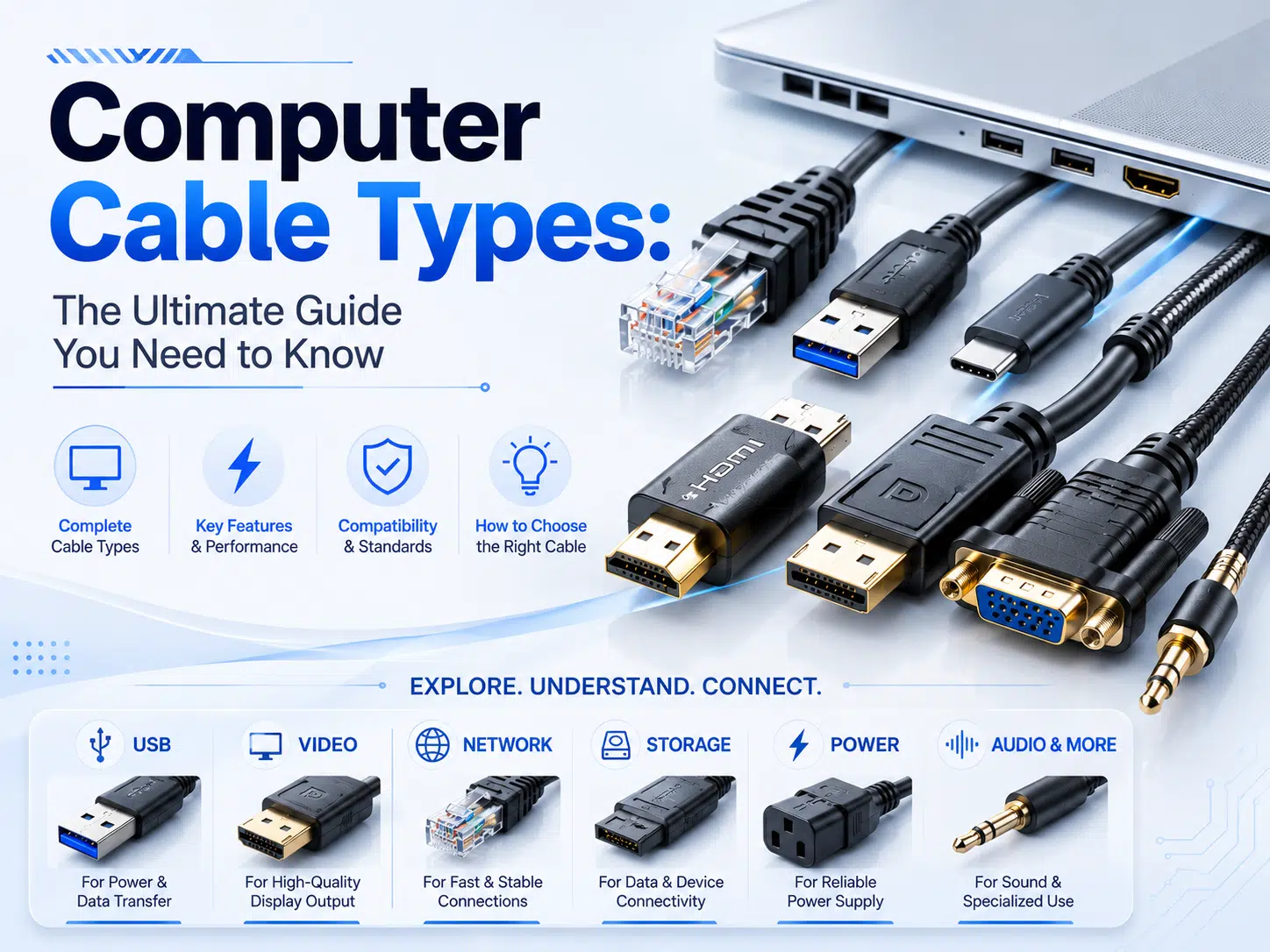
Get a close look at the most common computer cable types and their technical specs. WIRES brings you this detailed ultimate guide covering HDMI, DisplayPort, USB-C, and power cords to help you pick the most efficient custom setup.
As a professional wire harness and cable assembly manufacturer, WIRES maps out the whole cable world for you, from old-school analog plugs to today’s high-speed Thunderbolt setups.
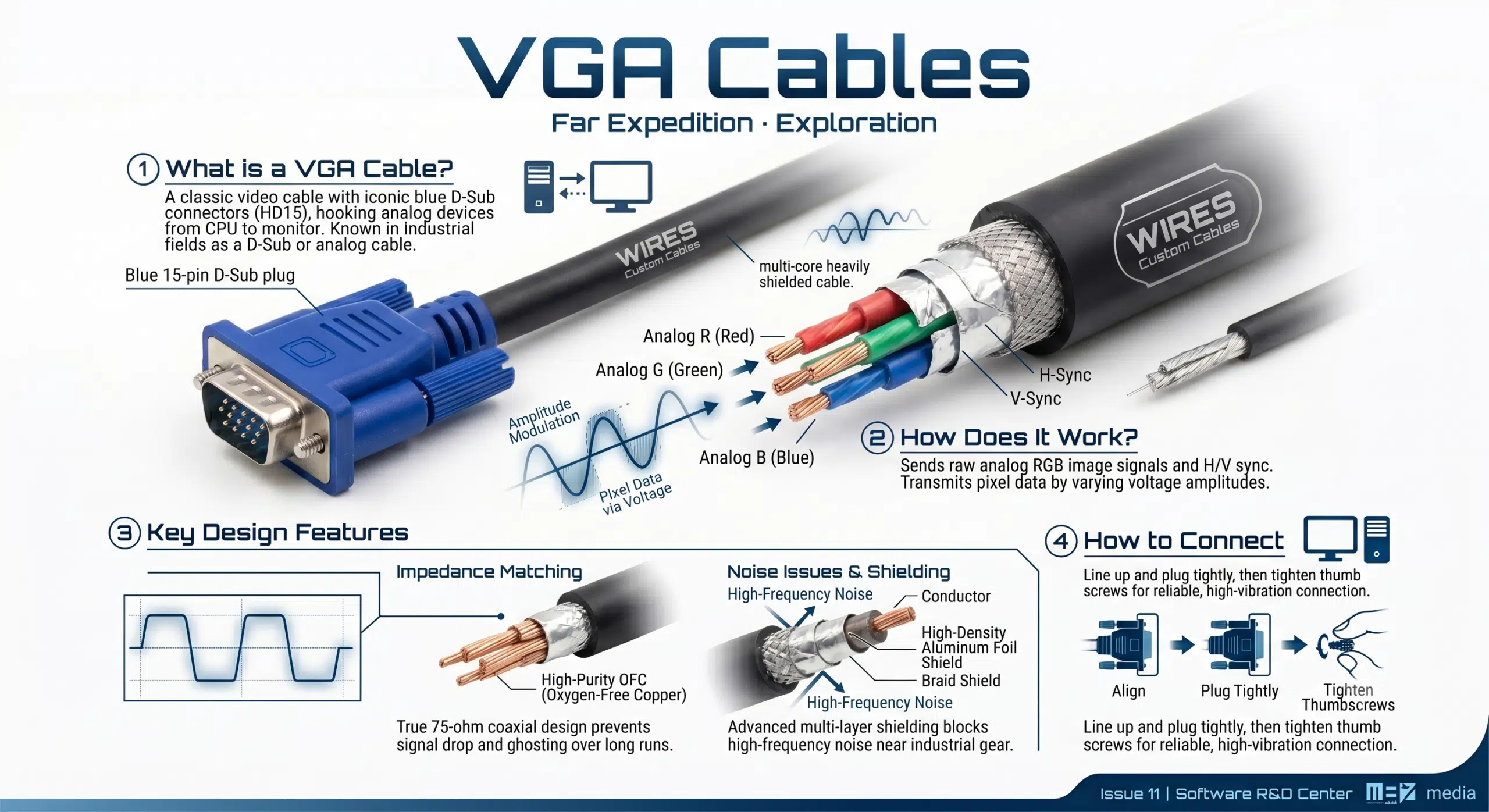
VGA stands for Video Graphics Array, and people in the supply chain and industrial computer fields often call it a D-sub cable or just an analog cable.
It is a classic computer video cable made of a multi-core, heavily shielded cable with those famous blue, high-density 15-pin D-Sub plugs on both ends, and it hooks up analog-supported devices from the CPU to the monitor.
The main job of a VGA cable is to send raw analog RGB (Red, Green, Blue) image signals along with horizontal and vertical sync signals without losing data.
It transmits image pixel information by varying the amplitude of the electrical signal, ultimately rendering it clearly on the monitor screen.
It passes along pixel data by changing voltage levels, which then renders and displays a clear picture on your monitor screen.
Because analog signals do not have built-in error correction, a VGA cable can easily suffer from signal drop or high-frequency loss if it runs longer than 5 meters due to high line capacitance.
Regular cheap consumer cables without a true 75-ohm coaxial impedance match will show bad ghosting or wavy lines on screen when running near high-power industrial gear.
To fix this flaw, WIRES uses high-purity OFC (Oxygen-Free Copper) for all three primary color conductors and adds an independent, high-density aluminum foil shield to block out outside noise on our custom VGA cables.
VGA cables work great for standard computer setups, and their screw-in locks make them very reliable.
First, plug one end tightly into your monitor or TV VGA port based on your layout, then line up and plug the other end into the VGA port on the computer tower.
Finally, tighten the metal thumb screws on both sides to make sure the plug does not wiggle free in high-vibration environments.
DVI stands for Digital Visual Interface, and it was designed as a high-fidelity video link to replace old VGA analog tech.
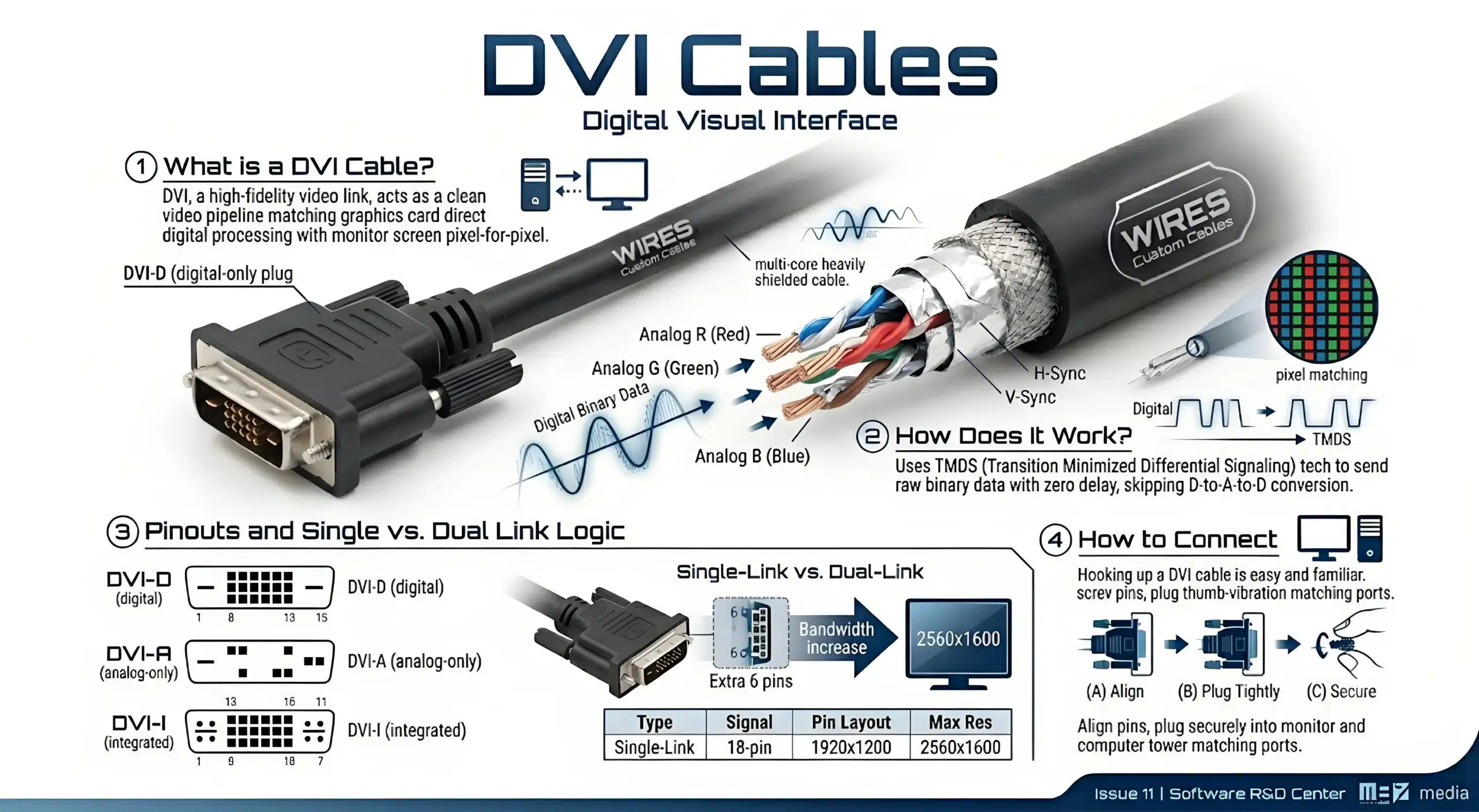
It acts as a clean video pipeline that uses the graphics card’s high-frequency digital processing to match the digital video source directly with the monitor screen pixel-for-pixel.
A DVI cable skips the whole “digital-to-analog-to-digital” conversion process, which completely gets rid of signal degradation and fuzziness.
It uses TMDS (Transition Minimized Differential Signaling) tech to send raw binary data straight from the computer to the LCD monitor pixels with almost zero delay.
The DVI family breaks down into DVI-D (digital only), DVI-A (analog only), and DVI-I (which handles both digital and analog).
When you need to run high resolutions, a Dual-Link DVI cable uses 6 extra pins to jump the bandwidth up to 9.9 Gbps, fixing the common issue where a Single-Link cable fails to run a 2560×1600 screen.
| DVI Type | Signal Type | Pin Layout | Max Resolution Support |
| DVI-D (Digital) | Pure Digital | 18-pin (Single) / 24-pin (Dual) | 2560×1600 @60Hz (Dual-Link) |
| DVI-A (Analog) | Pure Analog | 17-pin | 1920×1200 @60Hz |
| DVI-I (Integrated) | Digital & Analog | 23-pin (Single) / 29-pin (Dual) | 2560×1600 @60Hz (Dual-Link) |
Hooking up a DVI cable follows the exact same physical steps as a VGA cable, keeping things easy and familiar for users.
Just plug one end securely into the back of your monitor, and then plug the other end straight into the matching DVI port on the computer tower.
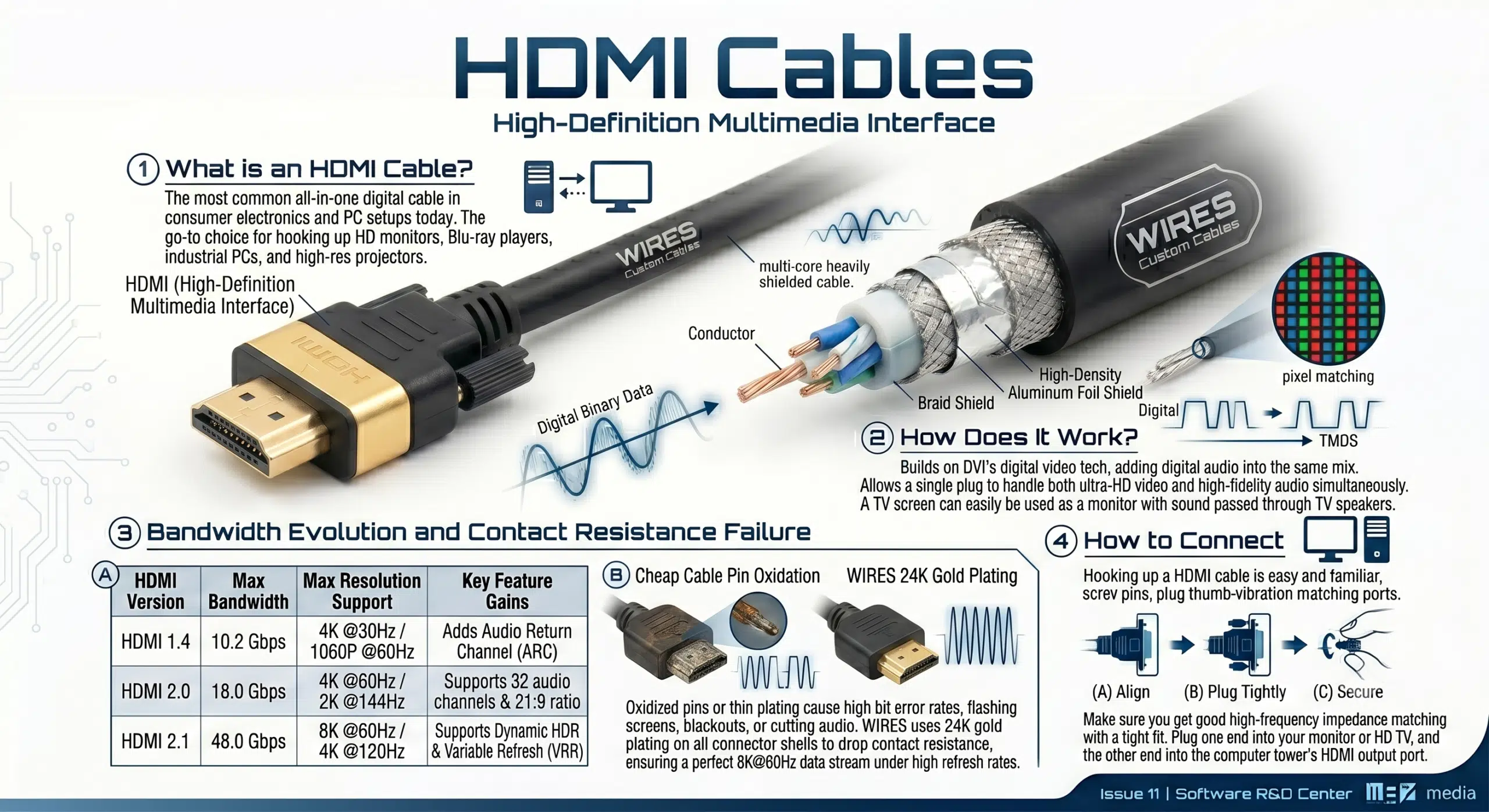
HDMI stands for High-Definition Multimedia Interface, and it is the most common all-in-one digital cable found in consumer electronics and PC setups today.
In real-world setups, it is the go-to choice for hooking up HD monitors, Blu-ray players, industrial PCs, and high-res projectors.
To make wiring simpler, HDMI builds on DVI’s digital video tech but adds digital audio into the same mix.
This two-in-one setup allows a single plug to handle both ultra-HD video and high-fidelity audio at the same time, meaning you can easily use a TV screen as a monitor and pass the sound right through the TV speakers.
As bandwidth jumped from 10.2 Gbps on HDMI 1.4 up to a massive 48 Gbps on HDMI 2.1, keeping high-frequency signals from dropping became a big engineering challenge.
Cheaply made cables often suffer from oxidized pins or thin plating, which causes high bit error rates that lead to flashing screens, blackouts, or cutting audio.
To keep your signal flawless under high refresh rates, WIRES uses 24K gold plating on all our high-spec HDMI connector shells to drop contact resistance and ensure a perfect 8K@60Hz data stream.
| HDMI Version | Max Bandwidth | Max Resolution Support | Key Feature Gains |
| HDMI 1.4 | 10.2 Gbps | 4K @30Hz / 1080P @60Hz | Adds Audio Return Channel (ARC) |
| HDMI 2.0 | 18.0 Gbps | 4K @60Hz / 2K @144Hz | Supports 32 audio channels & 21:9 ratio |
| HDMI 2.1 | 48.0 Gbps | 8K @60Hz / 4K @120Hz | Supports Dynamic HDR & Variable Refresh (VRR) |
To make sure you get good high-frequency impedance matching, you need a nice tight fit.
Plug one end of the HDMI cable into your monitor or HD TV, and then plug the other end into the HDMI output port on your computer tower.
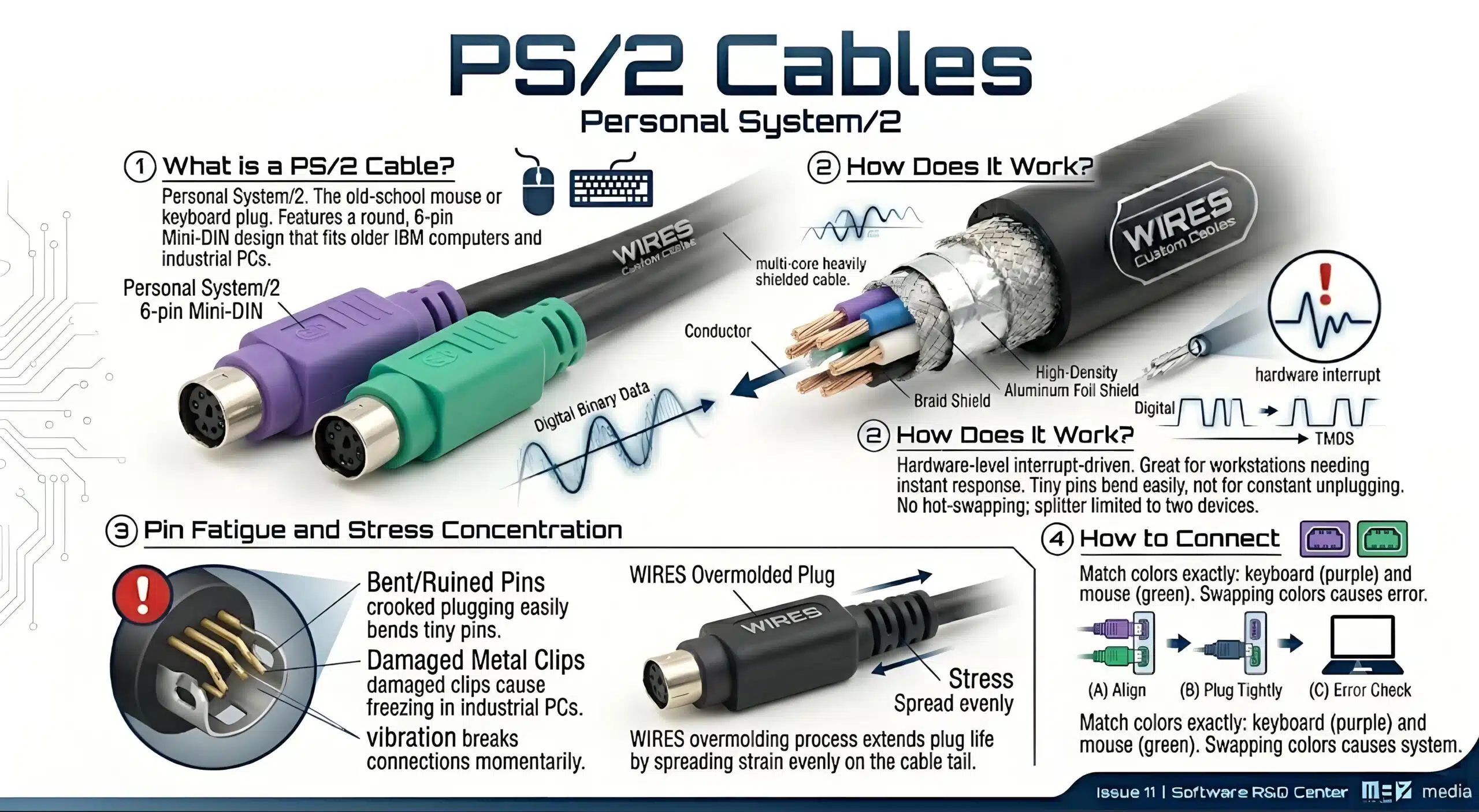
PS/2 stands for Personal System/2, and tech guys often call it the old-school mouse or keyboard plug.
It uses a round, 6-pin Mini-DIN plug design that fits older IBM computers and specific industrial PC motherboards.
PS/2 cables run on a hardware-level interrupt-driven mechanism, which is great for high-performance graphics workstations and real-time data gear that need instant responses.
However, these plugs are not meant for constant unplugging because the tiny pins bend easily, and the cable itself can wear out quickly.
They also do not support hot-swapping (plugging in while the PC is on), and you can only run two devices at most using a basic splitter wire.
Because a PS/2 plug is a micro-round connector, its internal pin holes are incredibly small, and plugging them in crooked can easily bend or ruin the internal metal clips.
Once those clips lose their spring tension, any slight vibration can break the electrical connection for a split second, causing an industrial computer to freeze or stop responding to user inputs.
To wipe out this physical stress issue, WIRES uses an overmolding process on our custom PS/2 builds to evenly spread out the strain on the cable tail and extend the plug’s life.
You can only use a PS/2 cable if your motherboard has the two matching round ports built in.
You must match the colors exactly when plugging them in: the purple port runs the keyboard, and the green port runs the mouse—swapping them will cause a system error.
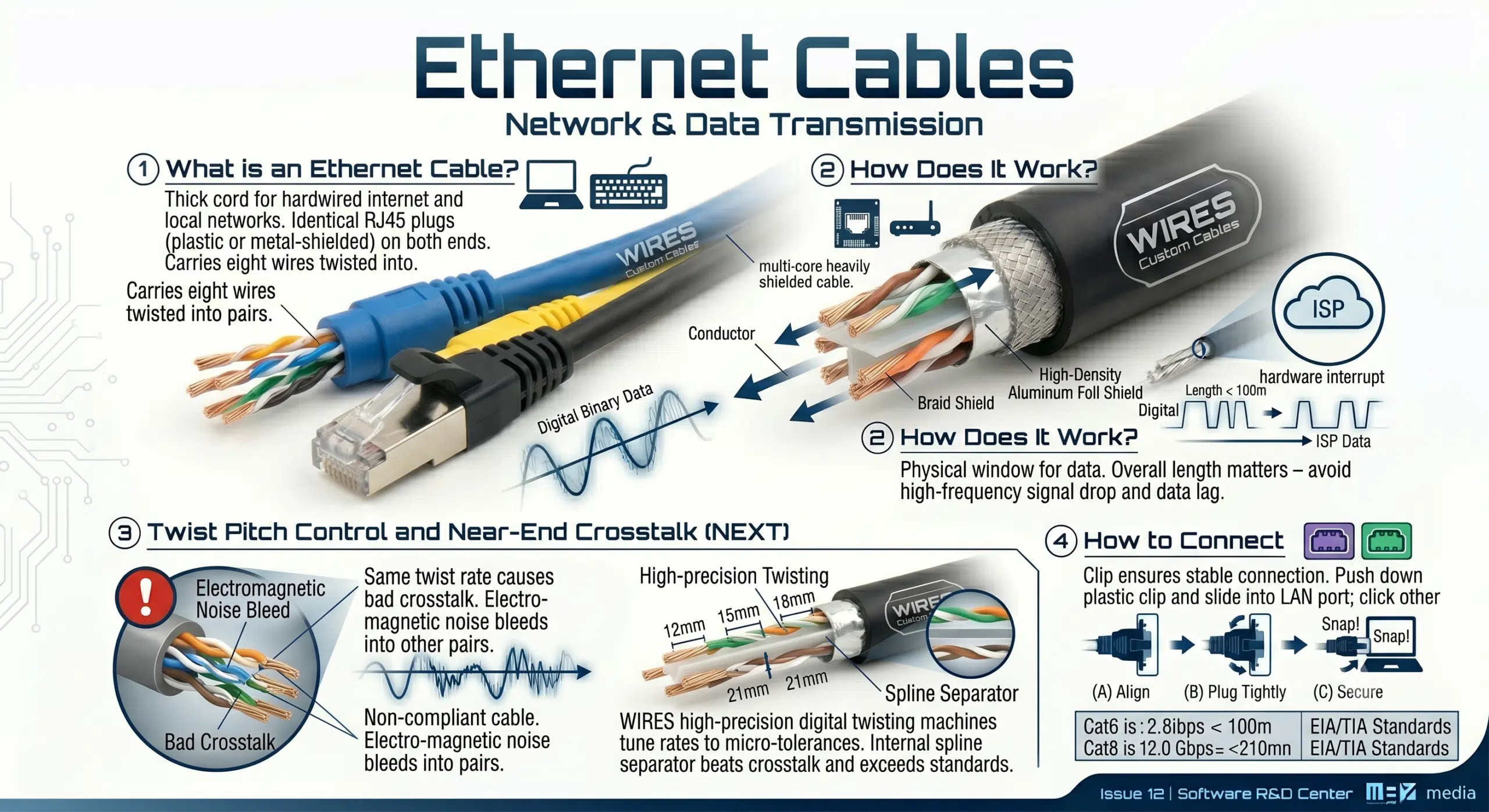
An Ethernet cable (often just called a network cable) is a thick cord used to set up a rock-solid, hardwired internet or local network connection.
It has identical RJ45 plastic or metal-shielded plugs on both ends, carries eight wires twisted into pairs inside, and comes in different colors for easy cable management.
Your computer motherboard has a built-in Ethernet port that acts as a physical window for data, and the cable carries high-speed network signals from your router or internet service provider (ISP).
In cable engineering, the overall length matters a lot, so you need to keep your cable runs within spec to avoid high-frequency signal drop or data lag.
The eight wires inside a network cable are twisted into four pairs, but if every pair uses the exact same twist rate (lay length), they will bleed electromagnetic noise into each other, causing bad crosstalk.
When manufacturing Cat6 and Cat8 high-frequency network cables, WIRES uses digital high-precision twisting machines to keep the twist rates perfectly tuned within micro-tolerances, adding an internal spline separator to beat crosstalk and blow past TIA/EIA performance standards.
The clip on the RJ45 plug is what keeps your network connection stable.
To plug it in, push down the plastic clip on the end of the cable and slide it into the router LAN port, then take the other end and click it into the computer tower Ethernet port until you hear it snap.
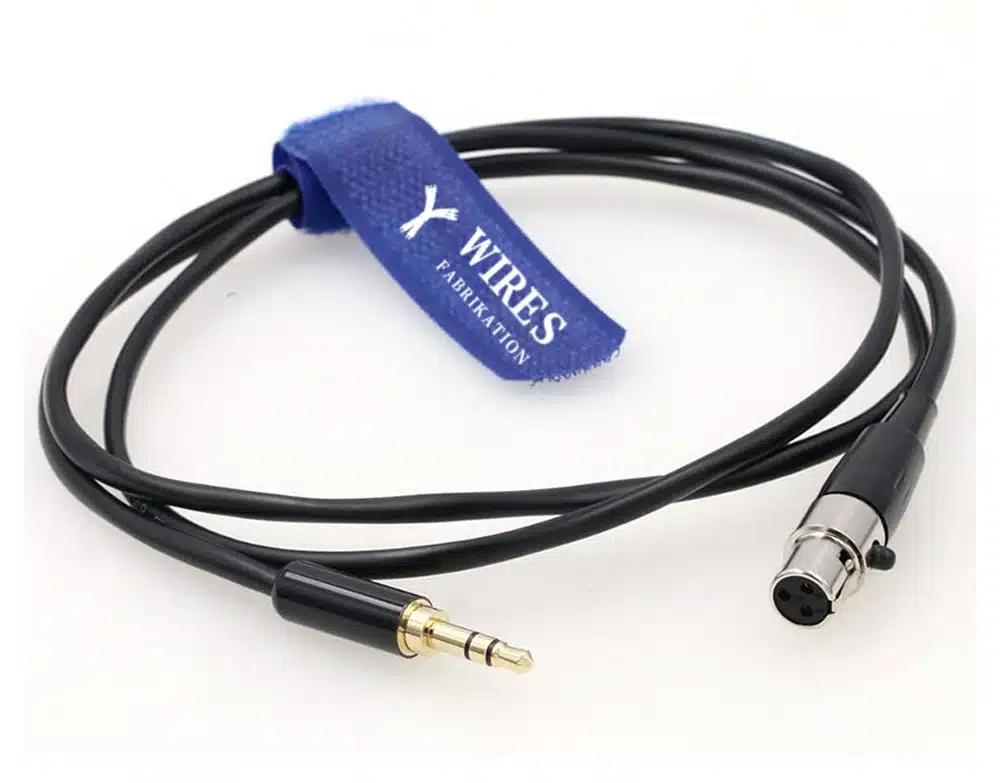
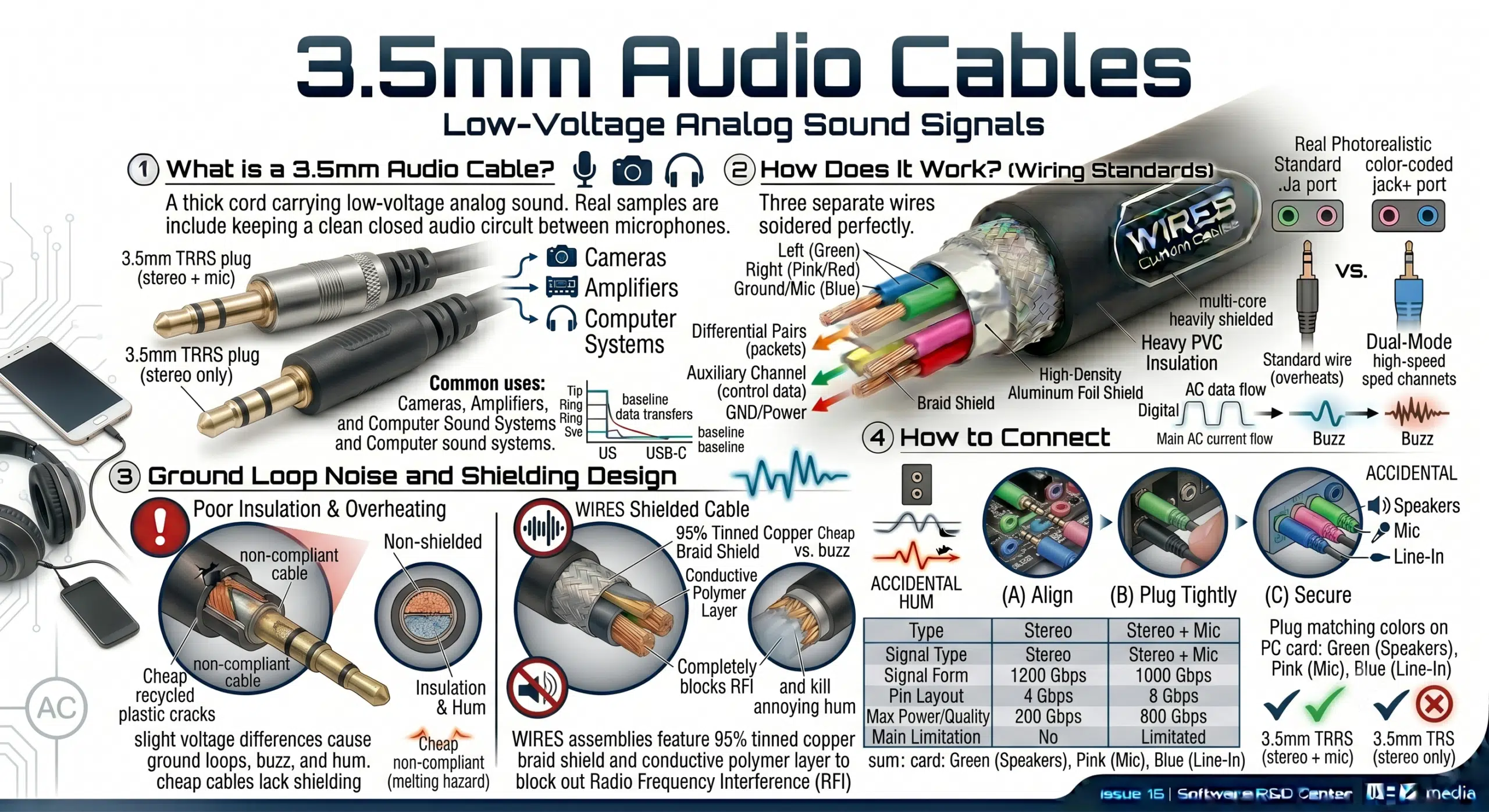
A 3.5mm audio cable carries low-voltage analog sound signals, and it is commonly used to keep a clean, closed audio circuit running between cameras, amplifiers, and computer sound systems.
Inside a standard 3.5mm audio cable, there are three separate wires that build the electrical audio circuit.
These wires use standard industry color codes (usually green, pink, and blue), and they must be soldered perfectly to work. This cable type works with a massive range of gear like DVD players, CD players, mixers, and microphones.
Because analog audio runs on very low voltage, any slight ground voltage difference between your computer motherboard and an amplifier can cause bad ground loop noise, making your speakers hum or buzz.
Cheap audio cables cut corners on shielding, but WIRES audio assemblies feature a 95% coverage tinned copper braided shield paired with a conductive polymer layer to completely block out Radio Frequency Interference (RFI) and kill that annoying hum.
To set it up, plug one end into your speakers, headphones, or microphone.
Then, plug the other end into the matching color-coded jack on your PC sound card: use the green jack for speakers or headphones, the pink jack for microphones, and the blue jack (Line-In) for mixing boards, CD players, or electric guitars.
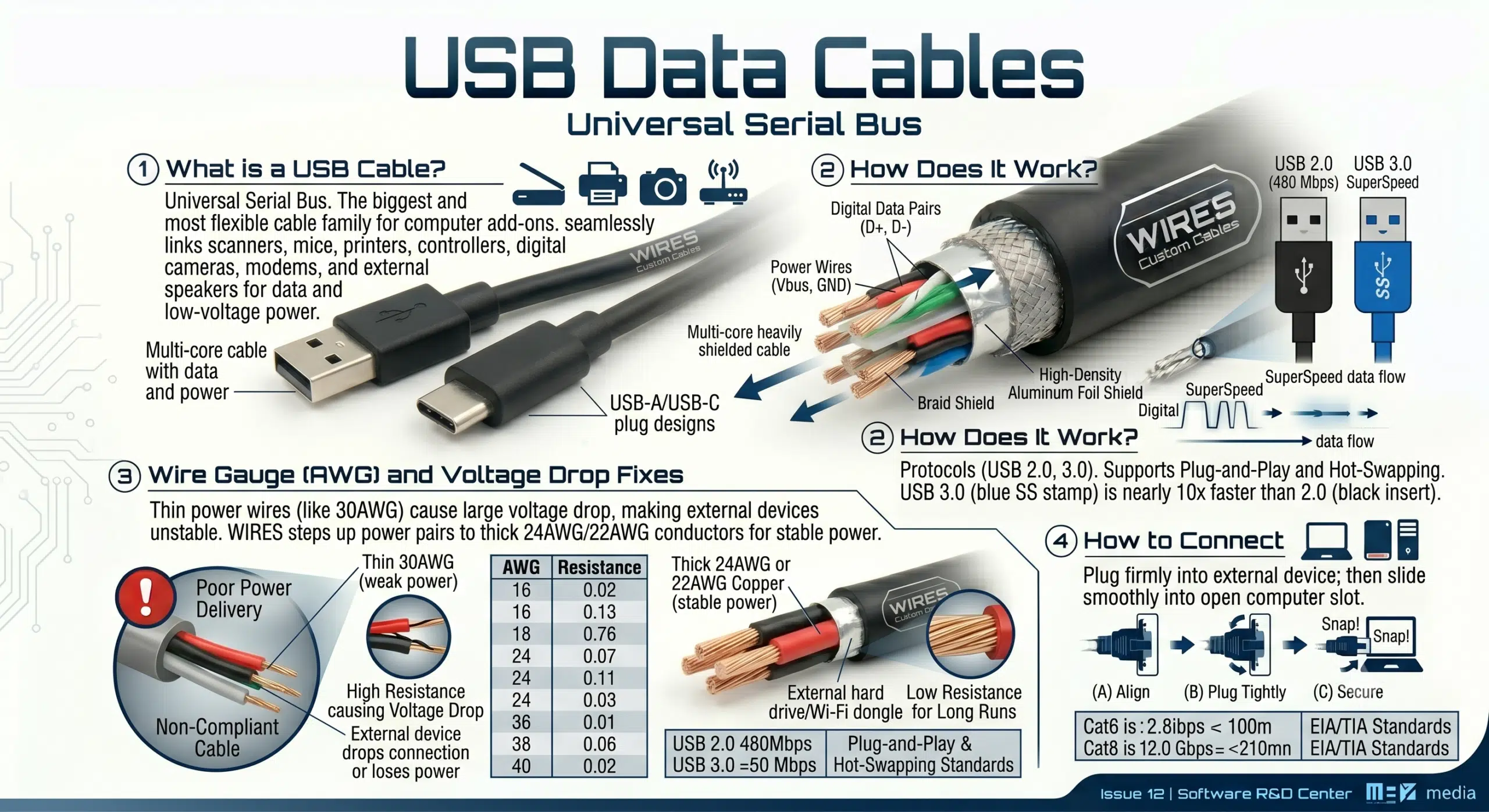
USB stands for Universal Serial Bus, and it is the biggest and most flexible cable family used for computer add-ons.
You can find USB cables on almost every modern electronic device, and they seamlessly link up scanners, mice, printers, controllers, digital cameras, modems, and external speakers for data and low-voltage power.
USB cables run on different speed protocols like USB 2.0 and USB 3.0, and their best feature is that they support plug-and-play and hot-swapping.
You can easily spot the difference by checking the plastic color inside the plug: a USB 3.0 cable has a blue plastic insert and carries an “SS” (SuperSpeed) stamp, while an older USB 2.0 cable has a black insert and runs nearly ten times slower.
USB 3.0 cables do not just send fast 5 Gbps data; they also carry power to run external gear.
If the power wires inside the cable are too thin (like a weak 30AWG wire), the electrical resistance will cause a major voltage drop over long runs, making external hard drives or Wi-Fi dongles constantly drop connection or lose power.
In our factory, WIRES steps up the power pairs inside all our high-load USB cables to thick 24AWG or 22AWG copper conductors to keep power stable.
To get the best data speeds and power output, plug one end of the USB cable firmly into your external device (like a portable drive or printer).
Then, slide the other end smoothly into any open USB slot on your computer tower to start using it instantly.
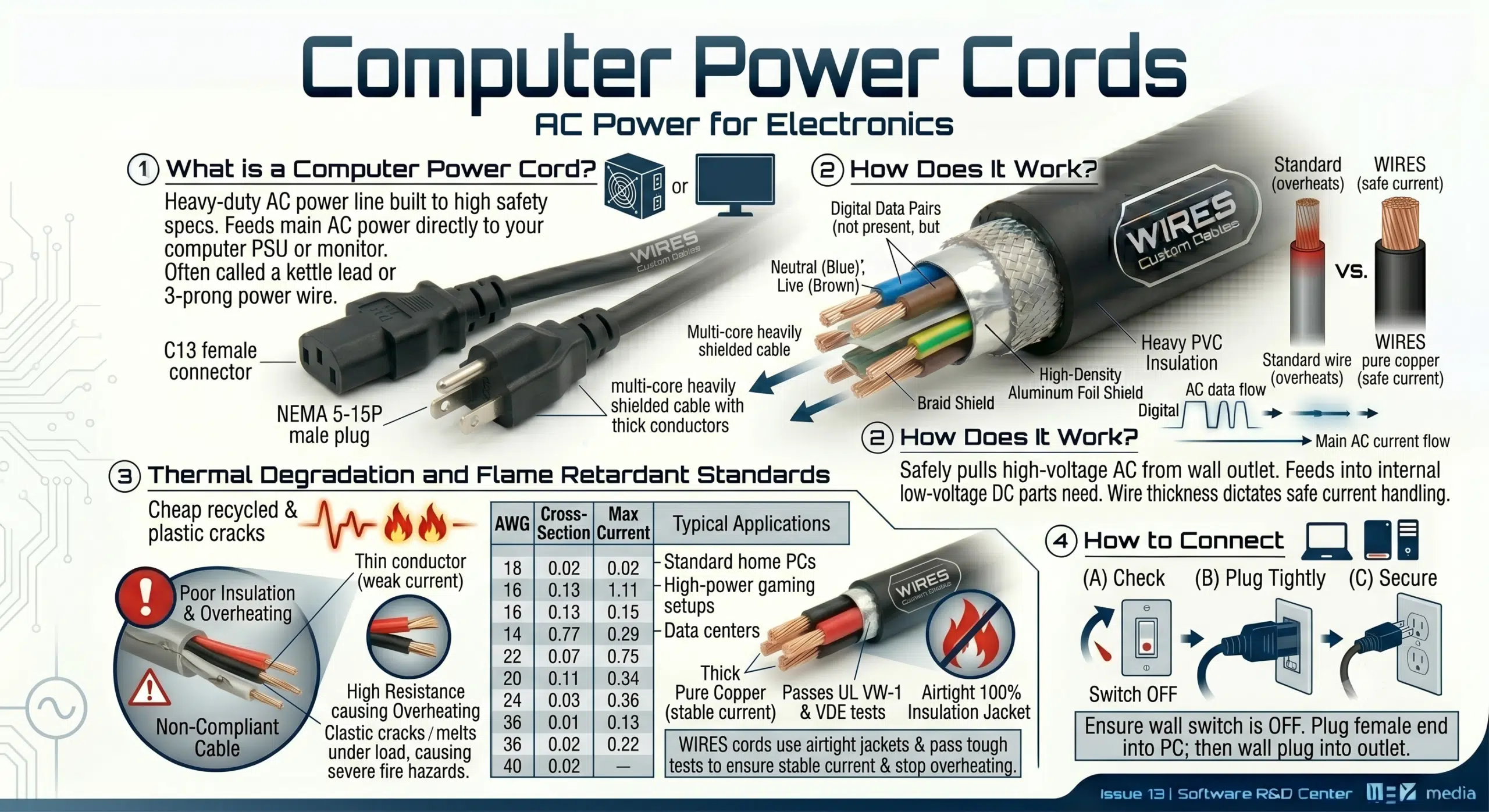
In the electronics supply chain, a computer power cord is often called a kettle lead or a 3-prong power wire.
It is a heavy-duty AC power line built to high safety specs, and it feeds high-voltage main AC power straight into your computer power supply unit (PSU) or large monitor.
The power cord safely pulls high-voltage AC power from your wall outlet and feeds it into the computer’s internal power supply box, which converts it to the exact low-voltage DC power your PC parts need.
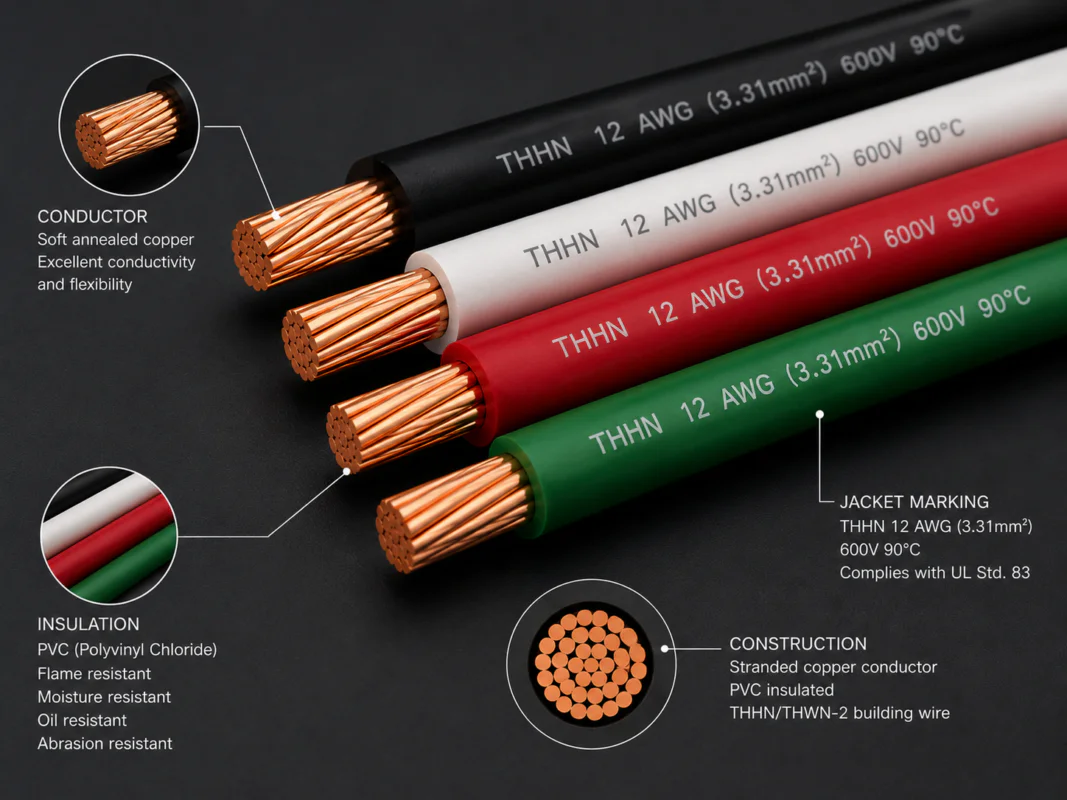
As the main power line, the thickness of the copper wires inside directly dictates how much electrical current the cord can safely handle without overheating.
Since a computer power cord often stays plugged in and running 24/7, using cheap recycled plastic for the outer jacket can lead to quick heat damage, cracking, and severe fire hazards.
On our production lines, WIRES power cords must pass tough UL VW-1 and VDE flame retardant tests, and we use 100% airtight insulation jackets around the pure copper wires to completely stop any local overheating or melting risks.
| Power Cable Gauge (AWG) | Wire Cross-Section | Max Safe Continuous Current | Typical Hardware Application |
| 18 AWG | ~0.82 mm² | 10 Amps (A) | Standard home PCs, LED monitors |
| 16 AWG | ~1.31 mm² | 13 Amps (A) | High-power gaming setups, blade server PSUs |
| 14 AWG | ~2.08 mm² | 15 Amps (A) | Data center server racks, main PDU lines |
When plugging in a power cord, the absolute most important safety rule is to make sure the wall outlet switch is turned off so you do not cause a dangerous electrical arc that could hurt you.
Once you are sure the power is off, plug the female 3-pin end firmly into the back of your computer tower or monitor, then plug the standard male wall plug into your wall outlet or power strip.
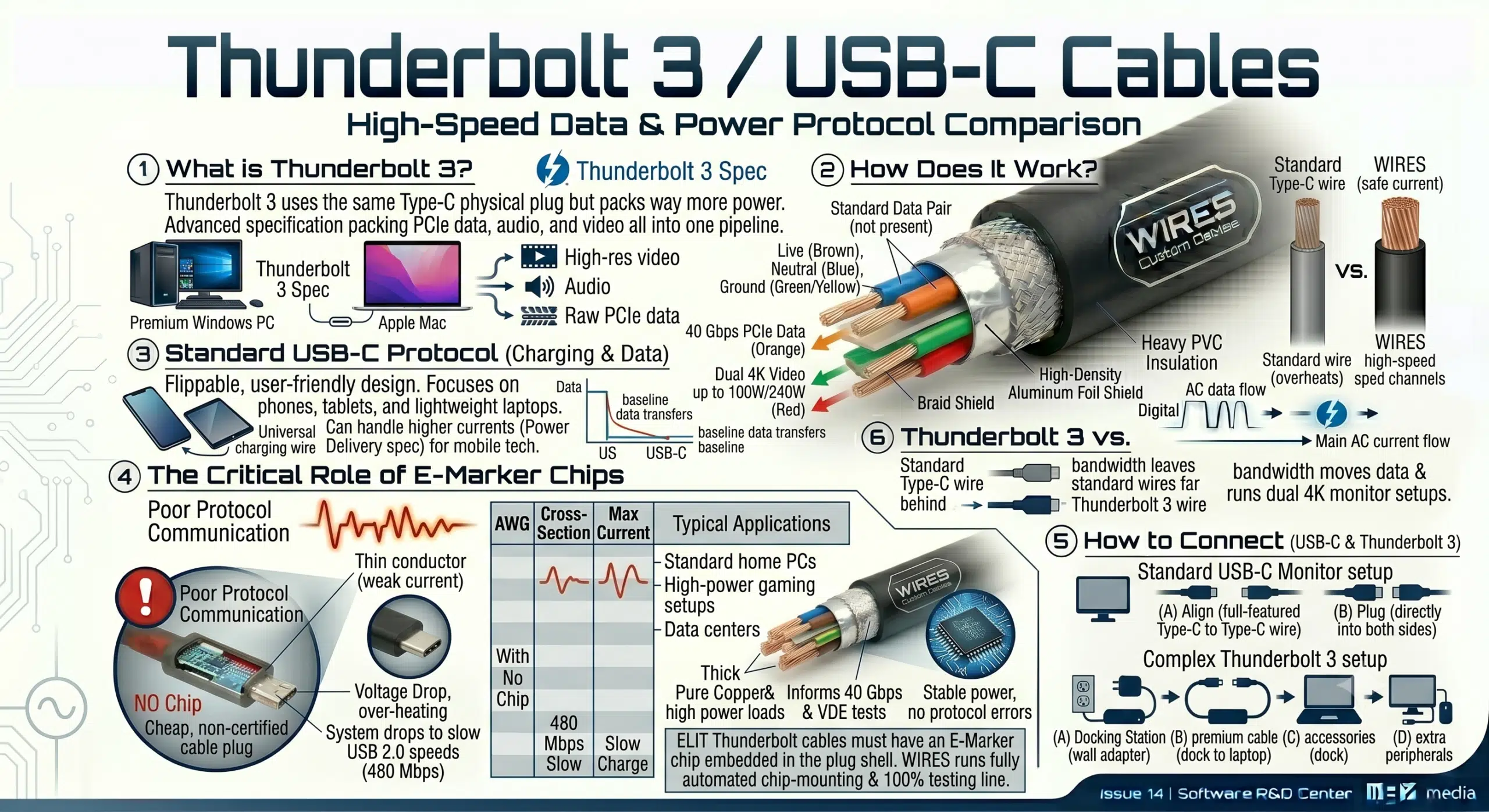
In the Apple Mac and premium Windows PC world, Thunderbolt 3 uses the exact same physical plug shape as a USB-C cable but packs way more power.
It is an advanced connectivity spec that packs high-speed PCIe data, audio, and video protocols all into one ultra-fast digital pipeline.
Thunderbolt 3 shines brightest on laptops and Apple Mac computers because it uses a smart, high-speed channel allocation trick to manage massive data loads.
It runs at an incredible 40 Gbps, allowing you to push high-res video, multi-channel audio, high-wattage power charging, and raw PCIe data streams all through a single wire.
On the other hand, a standard USB-C (USB Type-C) cable features a user-friendly, flippable design and focuses more on everyday charging and baseline data transfers for phones, tablets, and lightweight laptops.
It can handle much higher electrical current than old USB cables (thanks to the latest USB Power Delivery spec), making it the universal charging wire for modern mobile tech.
The biggest difference between an elite Thunderbolt 3 cable and a cheap USB-C wire lies in how they talk to your devices.
A true Thunderbolt 3 cable must have a tiny E-Marker smart chip embedded inside the plug shell to tell the connected computer that it can safely handle 40 Gbps speeds and 100W/240W power loads—without this chip, the system drops back to slow USB 2.0 speeds.
WIRES runs a fully automated chip-mounting and 100% testing line to ensure every single cable links up perfectly without protocol errors.
To hook up a standard USB-C monitor, just take a full-featured USB-C to USB-C wire and plug it directly into both sides.
For a complex Thunderbolt 3 setup, plug your Thunderbolt 3 docking station into its own wall adapter first, use the dedicated premium cable to link the dock to your laptop’s Thunderbolt port, and then plug all your extra accessories straight into the dock.
Even though they look identical from the outside and share the same Type-C plug shape, their internal control protocols are worlds apart.
The bottom line is bandwidth: Thunderbolt 3 moves data and runs dual 4K monitor setups at speeds that leave standard USB-C wires far behind.
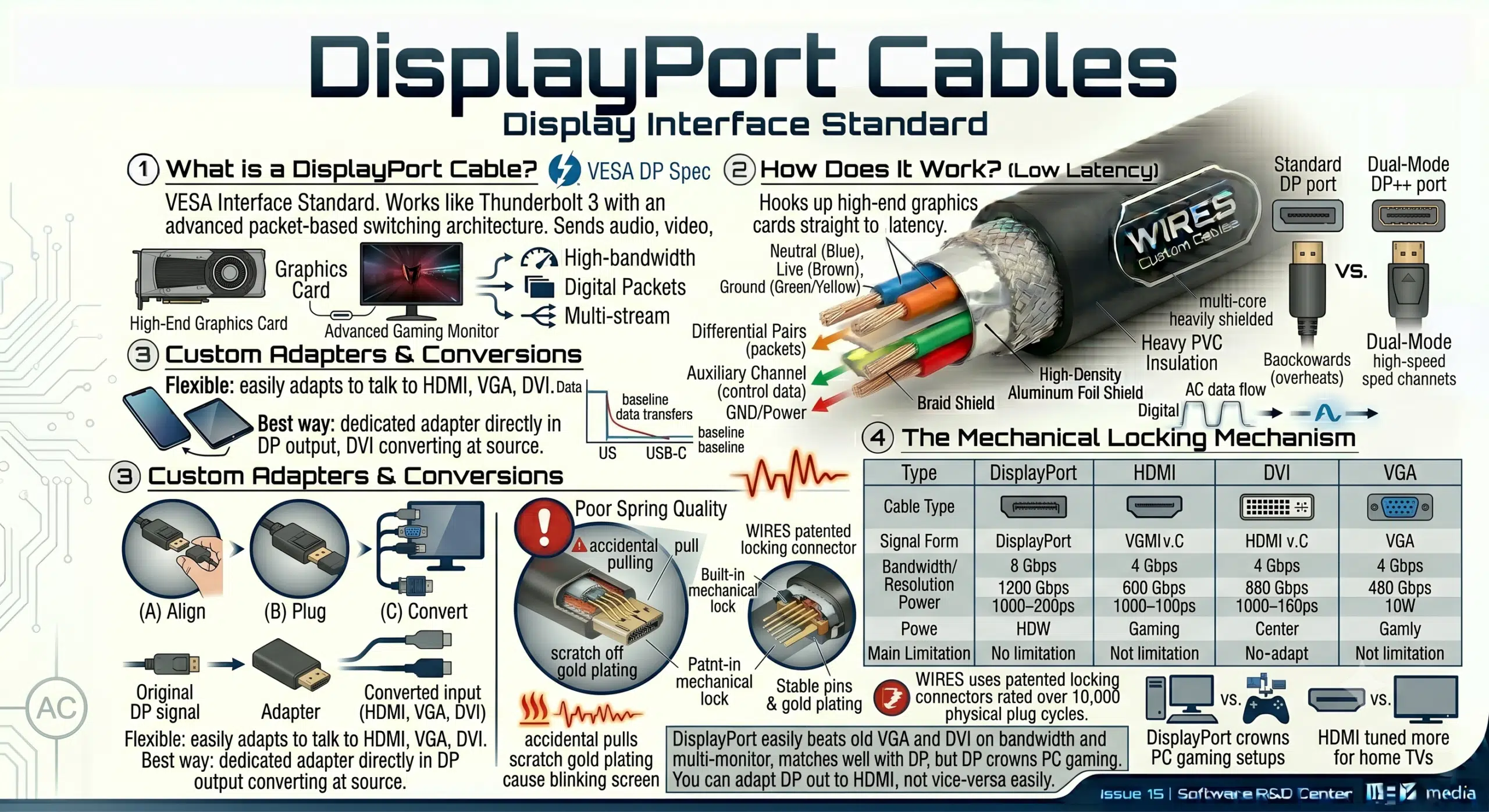
DisplayPort (or DP cable for short) is a high-bandwidth digital video interface standard created by VESA.
Its internal design works a lot like Thunderbolt 3, using an advanced packet-based data switching architecture to send audio, video, and extra control data smoothly through a single wire.
A DP cable hooks up high-end graphics cards straight to advanced gaming monitors or industrial displays with ultra-low latency.
They come in two physical styles: standard single ports and dual-mode ports (DP++) which offer incredible backward compatibility with older display types.
DisplayPort is incredibly flexible and can easily adapt to talk to HDMI, VGA, or DVI screens.
The best way to do this is to plug a dedicated adapter directly into the computer’s DP output port, converting the signal right at the source to match whatever input wire your monitor uses.
Unlike HDMI which just uses friction to stay in place, a standard DisplayPort connector features a built-in spring-loaded mechanical lock.
If the spring quality is poor, pulling the cable by accident can warp the internal pins or scratch off the gold plating, which eventually causes a blinking or flashing screen.
To ensure total reliability on industrial monitors and gaming setups, WIRES uses patented locking connectors rated for over 10,000 physical plug cycles.
| Cable Type | Signal Form | Bandwidth / Resolution Power | Core Advantage | Main Limitation |
| DisplayPort | Digital Packets | Ultra-High (Perfect for PC gaming & high-res) | Supports multi-stream daisy chaining & easy adapting | Mostly limited to PCs and pro gear |
| HDMI | Digital TMDS | High (Excellent for TVs and media gear) | Massive adoption across home theater gear | Lags slightly behind DP on ultra-high PC refresh rates |
| DVI | Pure Digital | Medium (Good for standard LCD monitors) | Great backward compatibility for mid-generation gear | Bulky plug, does not carry audio signals |
| VGA | Pure Analog | Low (Prone to high-frequency fuzziness) | Can run long distances on heavy-gauge wire | Video only, weak noise resistance |
Looking at the technical specs, DisplayPort easily beats old VGA and DVI tech on overall bandwidth and multi-monitor features.
While HDMI matches up well with DP, it is tuned more for home TVs, whereas DP holds the crown for PC gaming setups. You can adapt a DP port out to an HDMI screen, but you cannot easily plug an HDMI PC into a raw DP monitor without a pricey active converter box.
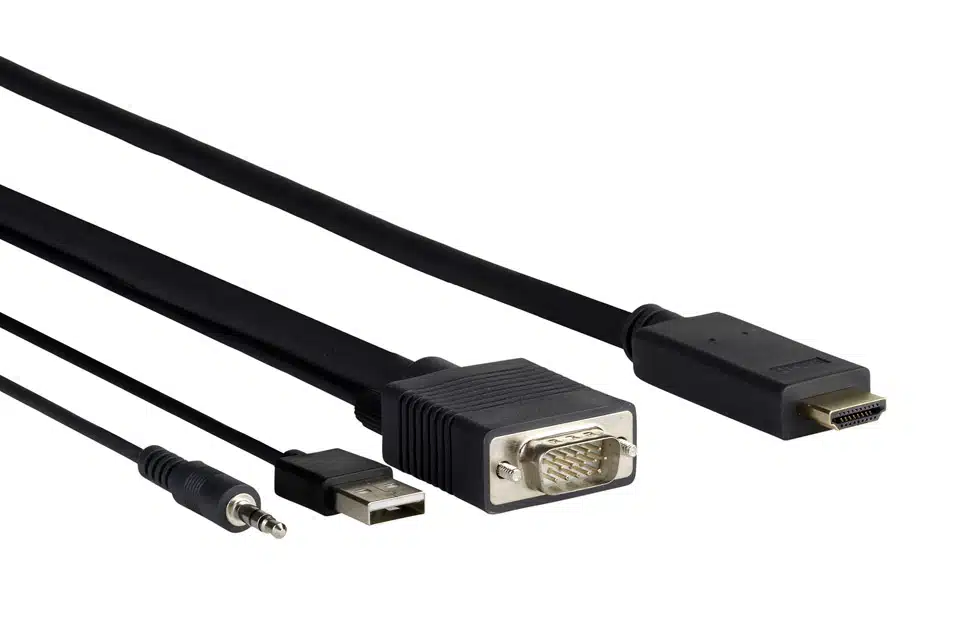
A VGA to HDMI converter uses a small built-in digital modulator chip to bridge old and new tech.
Its main job is to take the analog video from an old PC tower and mix it with a 3.5mm analog audio input, converting it all into a single digital HDMI stream so you can run old computers on modern flat-screen TVs.
Because HDMI and DVI use nearly identical digital video coding (TMDS) under the hood, cross-connecting them is simple.
If you just need a picture, a basic pin-to-pin passive adapter block does the trick; however, if you want to pull the audio out of the HDMI line, you will need an active audio extractor box to split the sound from the video wire.
A DVI to VGA adapter is a very cheap, compact little block found in almost every IT spare parts bin.
Its everyday job is to let an old VGA monitor receive the analog signal component that passes out through a modern graphics card’s DVI-I port.
This cable is a lifesaver for modern lightweight laptops that lack full-sized video ports.
It hides a smart protocol chip inside the plug that takes the video stream from your laptop’s USB slot and outputs it as a clean HDMI feed, making it easy to mirror your screen or run a dual-monitor office desk.
A coaxial to HDMI converter requires an active, powered RF demodulator box to read old-school round cable wire signals.
Its main use is to breathe new life into older gear, allowing a brand-new smart TV to read and display video from ancient cable boxes or security cameras.
When you are designing wiring for complex factory machines, commercial systems, or specialized medical hardware, standard store-bought computer cables often fail because they lack proper shielding or tight tolerances.
As a professional cable assembly manufacturer, WIRES specializes in building heavy-duty, high-shielding custom computer cables and internal precision wire harnesses.
We do not just build to your exact electrical specs and physical dimensions; we also offer full DFM (design for manufacturability) engineering reviews to ensure your cable builds achieve a long mechanical fatigue life and reliable electrical stability under tough real-world conditions.
The story of computer cables is a constant battle against electromagnetic noise, signal drop, and physical wear. Every single plug style, pinout, and insulation jacket is carefully engineered to match the data speeds of its hardware generation. Whether you are working in a busy data center or a harsh factory floor, keeping your systems running smoothly with zero downtime directly comes down to the quality and build of your cable connections.
As a dedicated cable assembly manufacturer with 28 years of factory experience, WIRES uses advanced DFM standards to build highly flexible, heavily shielded, and wear-resistant custom computer cables and precision wire harnesses. If you are working on a specialized piece of hardware or need high-volume commercial cable runs that must meet strict safety standards (like UL or IPC-WHMA-A-620), the engineering team at WIRES is ready to review your spec sheets and provide full technical physical-layer support.
Enjoy a free sample worth up to $100!
Explore our custom services now. Leave your email, and we'll get intouch!
 English English
 Vietnamese
 Indonesian
 Arabic
 Spanish